
Tokens and themes
You will expose the toggle's colours as tokens (slots) and add a theme that recolours it: one file, several looks, switched by the player or by the state machine.
1. Open Slots and themes
In the Interactive Studio (see Toggle with two segments, steps 1–2), open the Slots and themes tab. The table lists every token the comp already exposes 1 with its Default 2, the value set in After Effects.
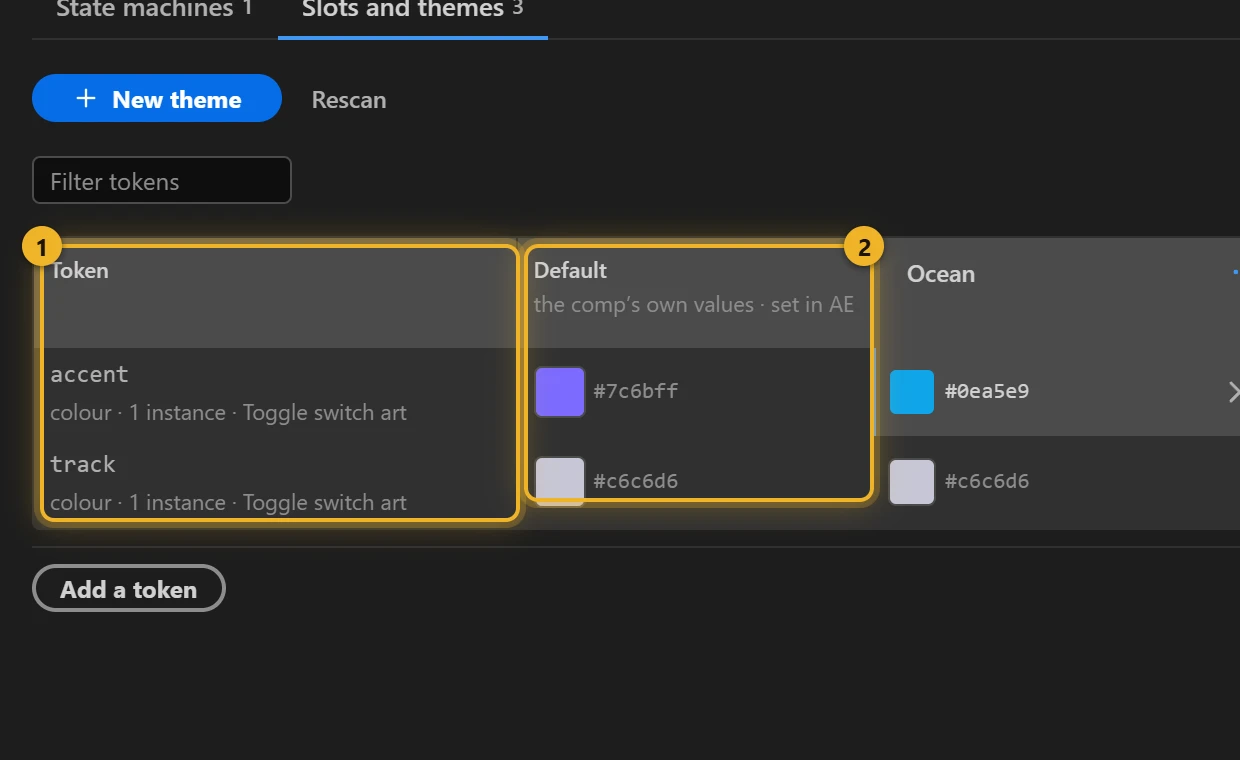
The sample exposes two colours: accent (the track when on, and the tick) and track (the track when off).
2. Add a token
To expose another colour, press Add a token 1. It lists what inside the comp 2 can become a token, by layer: fills, strokes and other values, with their current value. Press Add beside the one you want.
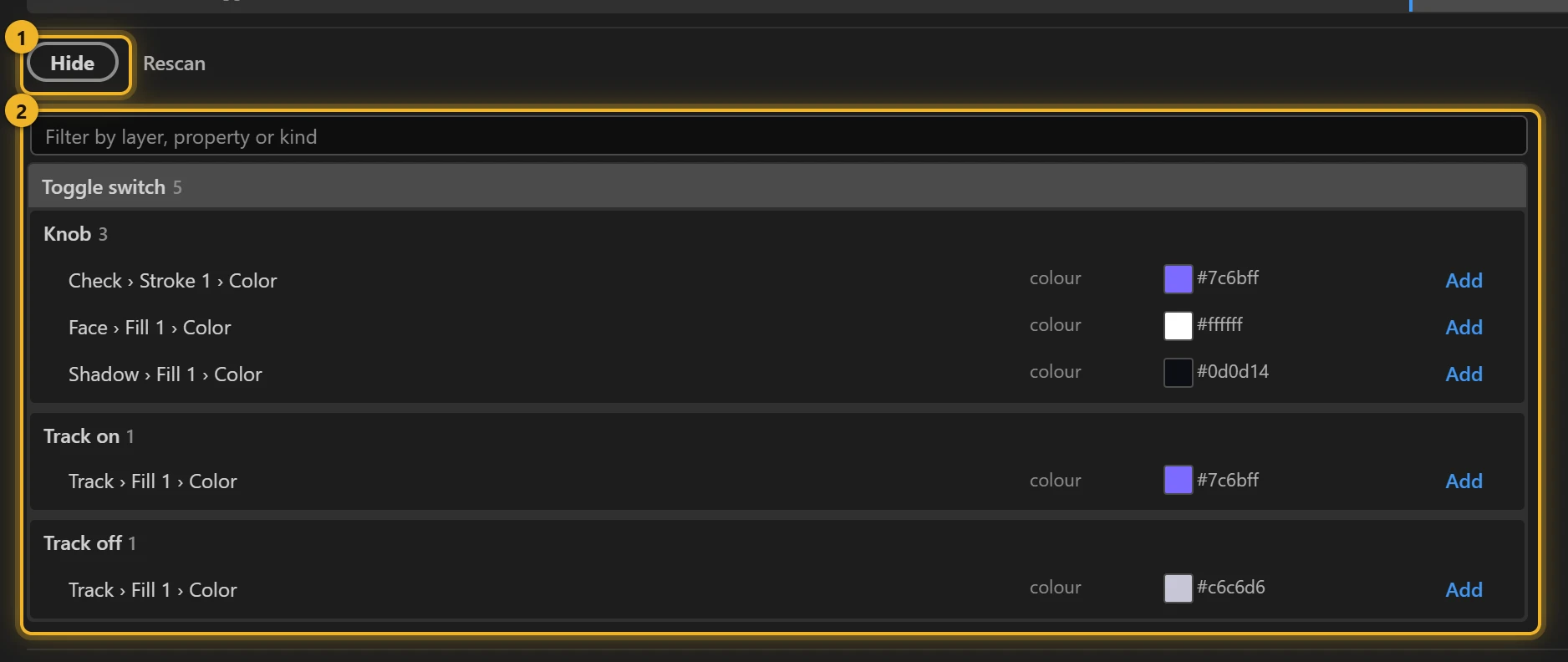
AXO promotes the property to Essential Graphics for you, with a readable name; the token appears in the table.
3. Add a theme
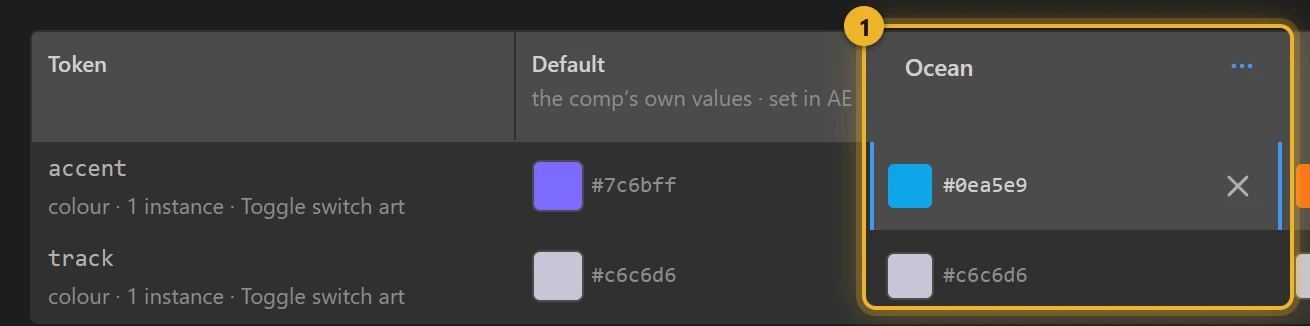
Press New theme. A column 1 appears that starts from the default values. Rename it by typing into its name, then change the tokens that differ: here, accent to an orange for a Sunset theme. Tokens you do not touch keep their defaults.
4. Try it
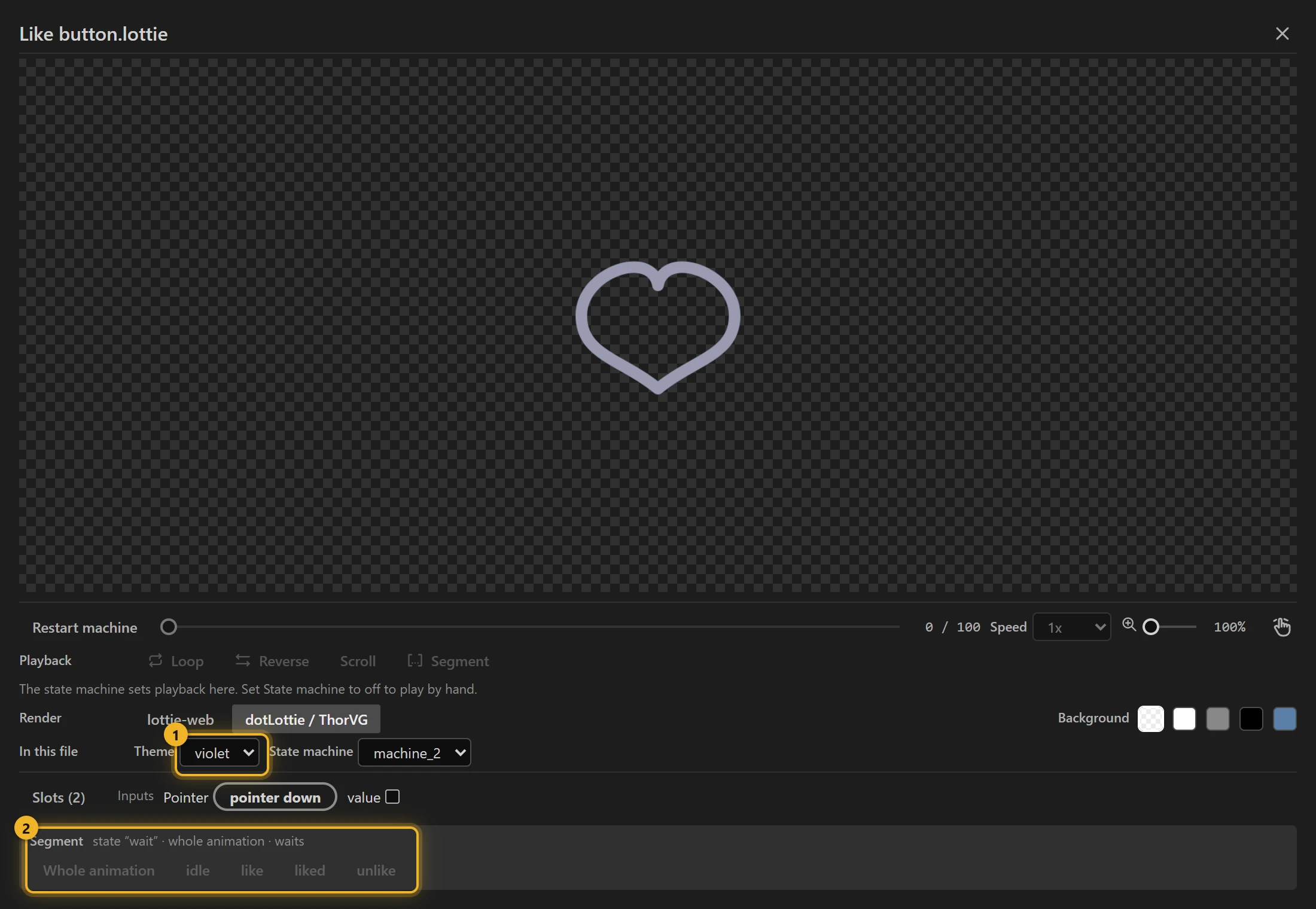
Press Build this comp. In the test player, or in Preview from Files, pick the theme under Theme 1.
5. Switch themes from the machine
A state machine can change the theme itself: add a Switch theme action to a state (on entering) or straight to a click, and the animation recolours at once. See the music player and the thermostat.
In a web page
js
player.setTheme("sunset");                      // a theme from the file
player.setColorSlot("accent", [1, 0.45, 0.1, 1]); // or one token, directly (RGBA 0–1)