
Interactive Studio
The Interactive Studio turns a comp into an interactive .lottie: segments from your markers, state machines that move between them, tokens (slots) from your colours and values, and themes that change those tokens. It opens from a comp in Build.
Open it
- In Build, switch on
lottie. Slots, themes and machines are files inside a .lottie, so the Studio is offered only when the build writes one. - Open the comp's row and press Interactive.
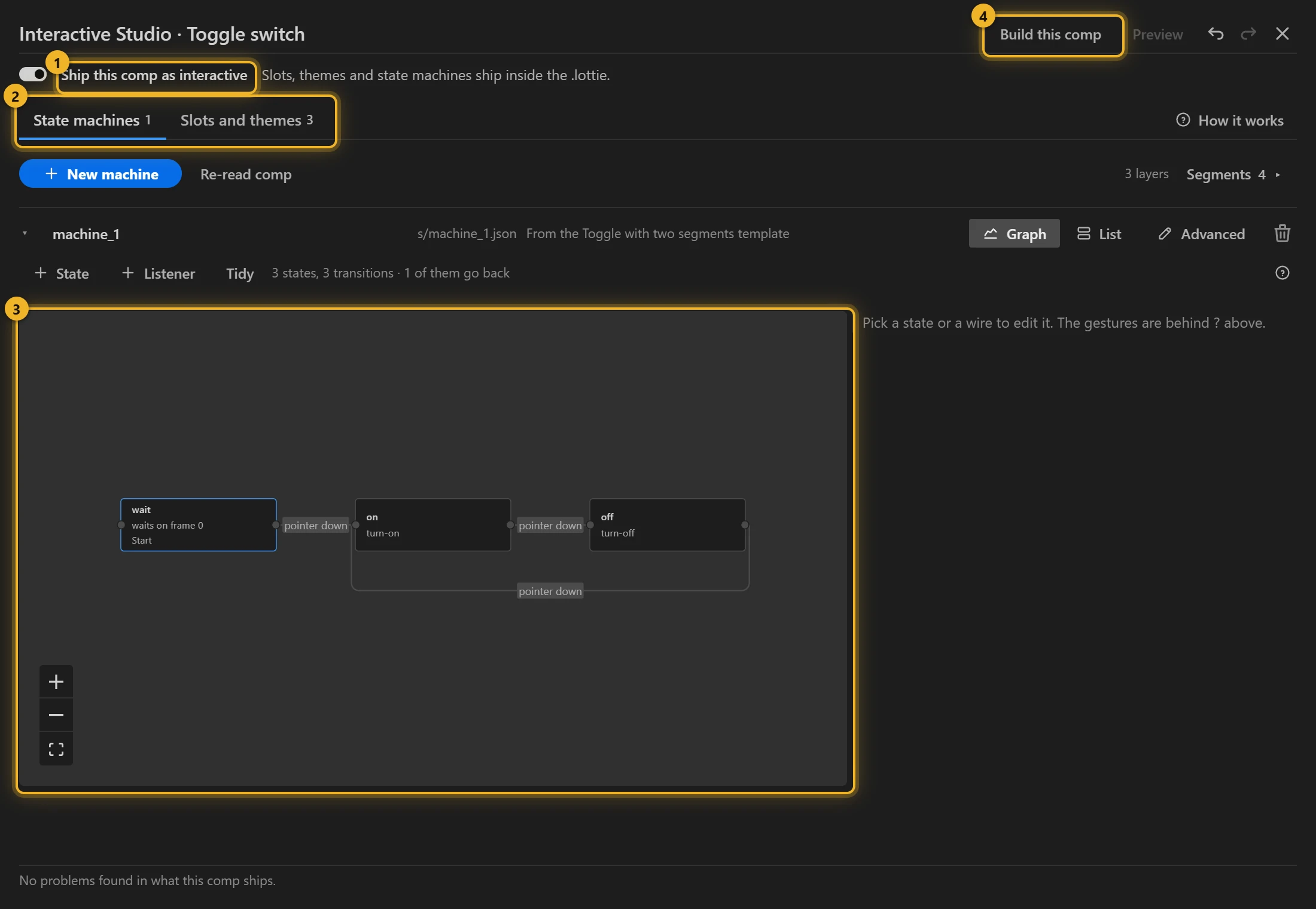
The Studio opens over the panel, titled with the comp's name: what ships 1, the two tabs 2, the machine editor 3, and at the top right Build this comp 4, Preview (after a build), Undo and Redo.
Undo and Redo work on this window only and never touch your composition. The keys are Ctrl+Z and Ctrl+Shift+Z, on macOS too: After Effects keeps ⌘Z for itself, so pressing it here undoes your last step in the project instead. The buttons always undo in the Studio. On macOS the arrow keys reach the panel only while no layer is selected in After Effects: with a layer selected, After Effects nudges that layer instead. Esc reaches the panel, then After Effects takes the keyboard back.
Several comps packed as One .lottie archive have one Studio for the whole file: press Interactive on the archive's row. It adds an Archive tab: what the file opens on, which themes each animation carries, and the animations inside. See Pack several comps into one .lottie; for a machine that switches between the animations, see Several animations in one file.
Two comps in one archive often have a machine with the same id (each comp's first machine is machine_1). Both ship: the second comp's machine gets a new id such as machine_1_2, and Build says which one to load by.
Ship this comp as interactive

Off, the comp exports a plain animation, and its markers still ship as segments. On, its slots, themes and state machines ship inside the .lottie. Everything you author stays in the project either way.
The line at the bottom of the Studio checks what the comp will ship and reports the result (for example "No problems found in what this comp ships").
Segments
A segment is a named stretch of the timeline that a state plays. The Studio reads segments from the comp's markers, by name and duration.
Segments 1, at the top right, opens the list 2: each segment with its frames.
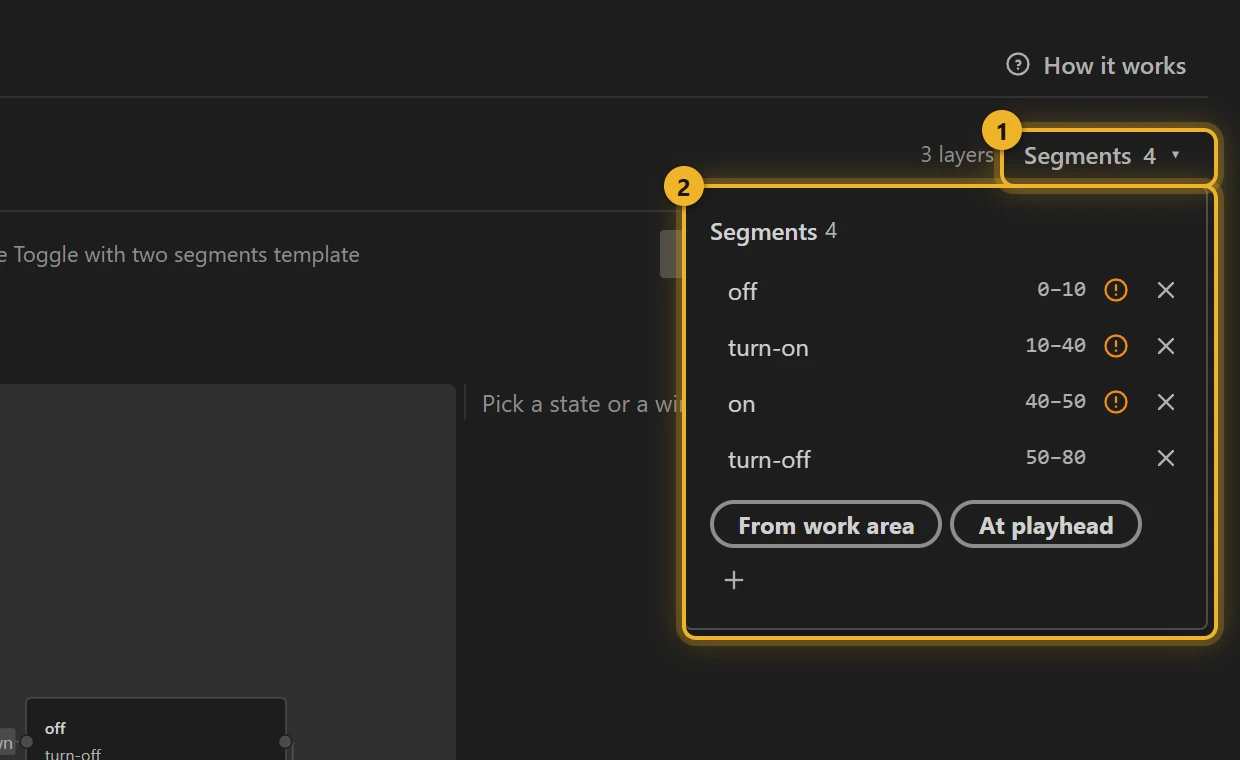
- From work area: a new segment from the comp's work area, read at the moment you click.
- At playhead: a new marker where the playhead stands now.
- +: an empty segment to fill in.
- Re-read comp: after you change markers in After Effects.
A marker with no name cannot be referenced, and one with no duration would play the whole animation; the Studio flags both.
State machines
New machine 1 starts from a template 2 already wired to this comp's segments.
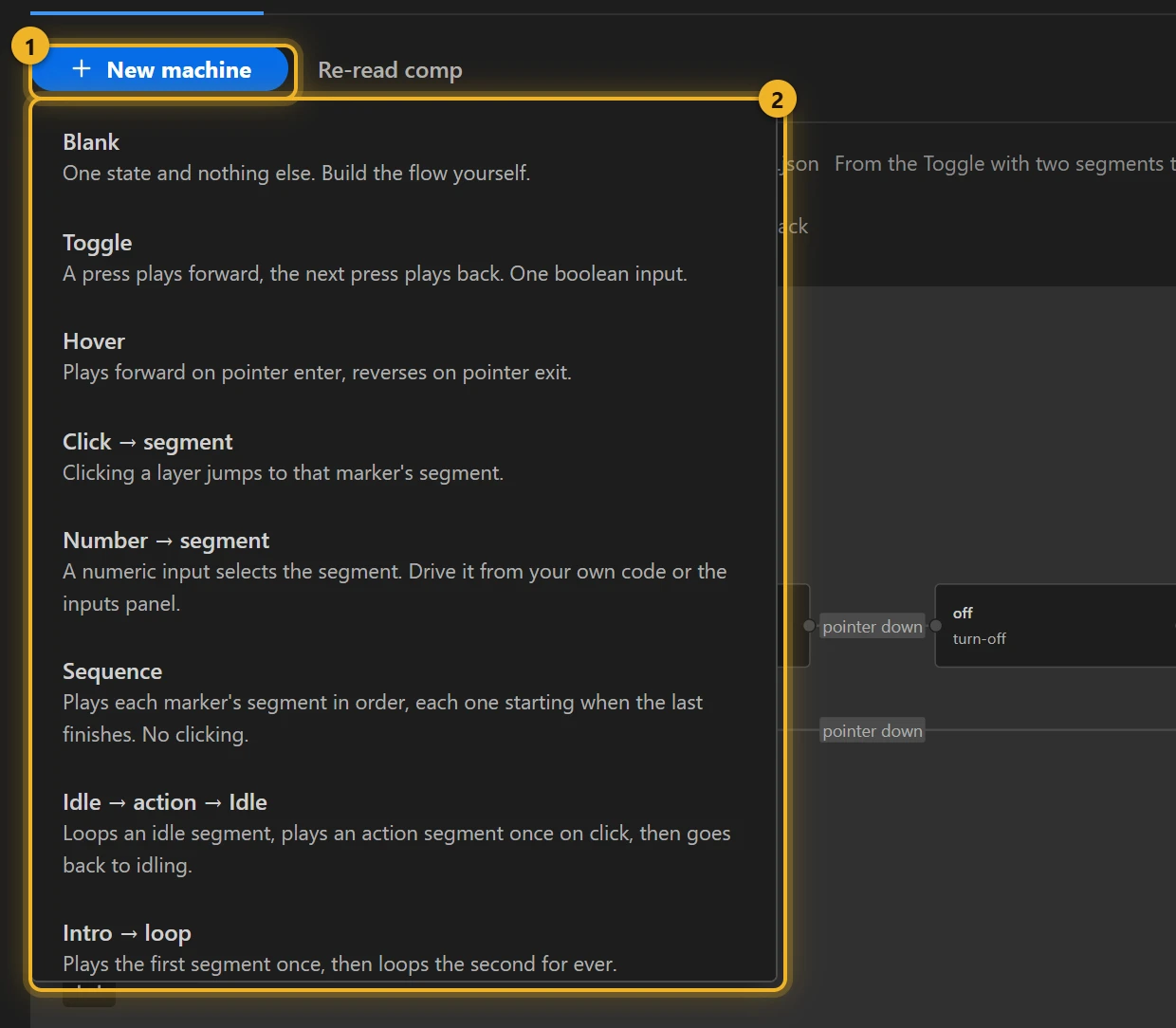
The templates: Blank, Toggle, Hover, Click → segment, Number → segment, Sequence, Idle → action → Idle, Intro → loop, Hover + click, Button, Loading → done, Carousel, Toggle with two segments, Submit, Hold to confirm, Theme switch, Counter → goal, Progress from the page, Pulse N times, Pick one, Idle + random fidget. Each has a tutorial in State machine templates.
Graph and List
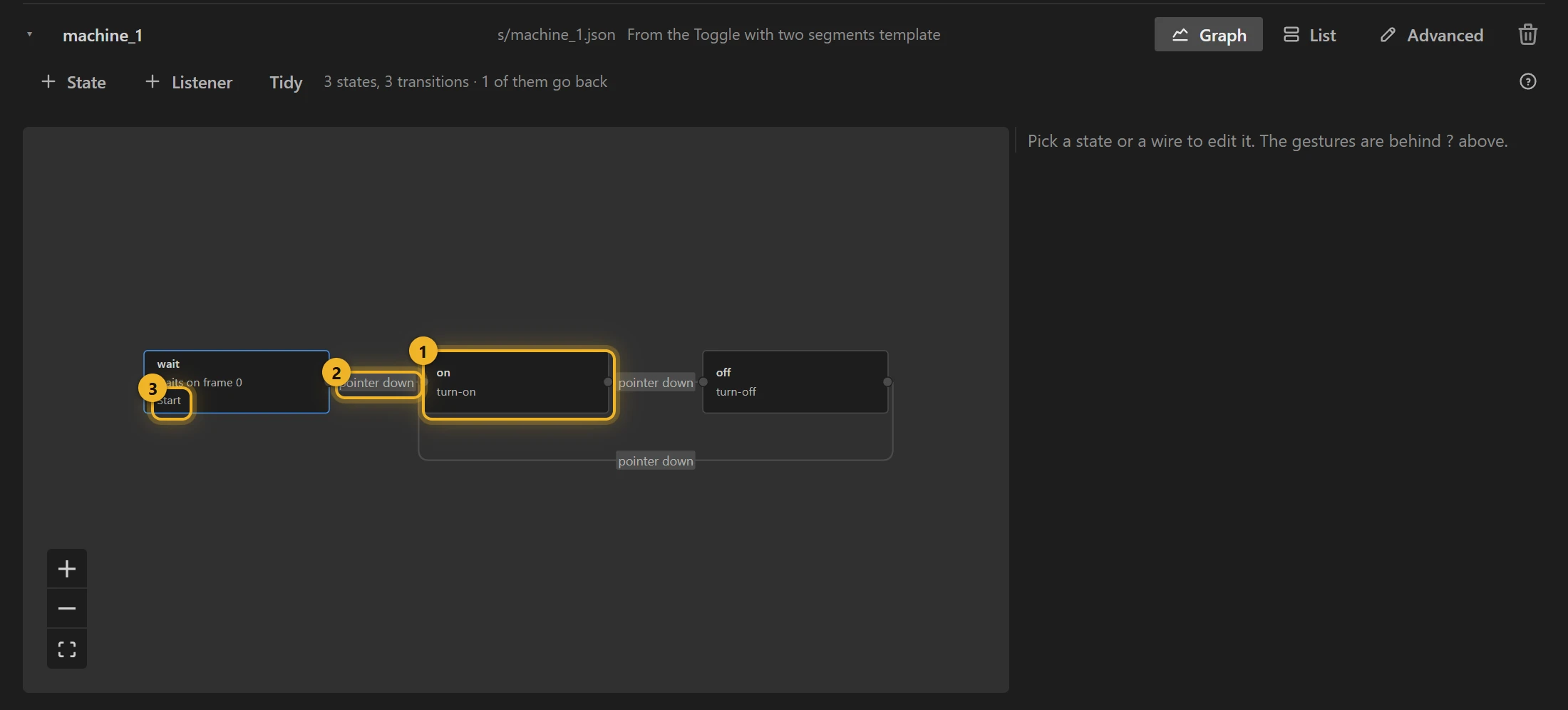
A machine shows as a Graph (states as boxes, transitions as wires labelled with what triggers them) or as a List of the same states and rules. + State adds a state; + Listener adds a state that plays nothing and whose rules apply from every state; Tidy lays the graph out again. Advanced shows the definition exactly as the file spells it: declared inputs, interactions without a rule, autoplay.
In the graph, a state 1 is a box, a wire's label says what triggers it 2, and Start 3 marks where the machine begins.
The List shows every state with its settings, its actions and its rules, one under another:
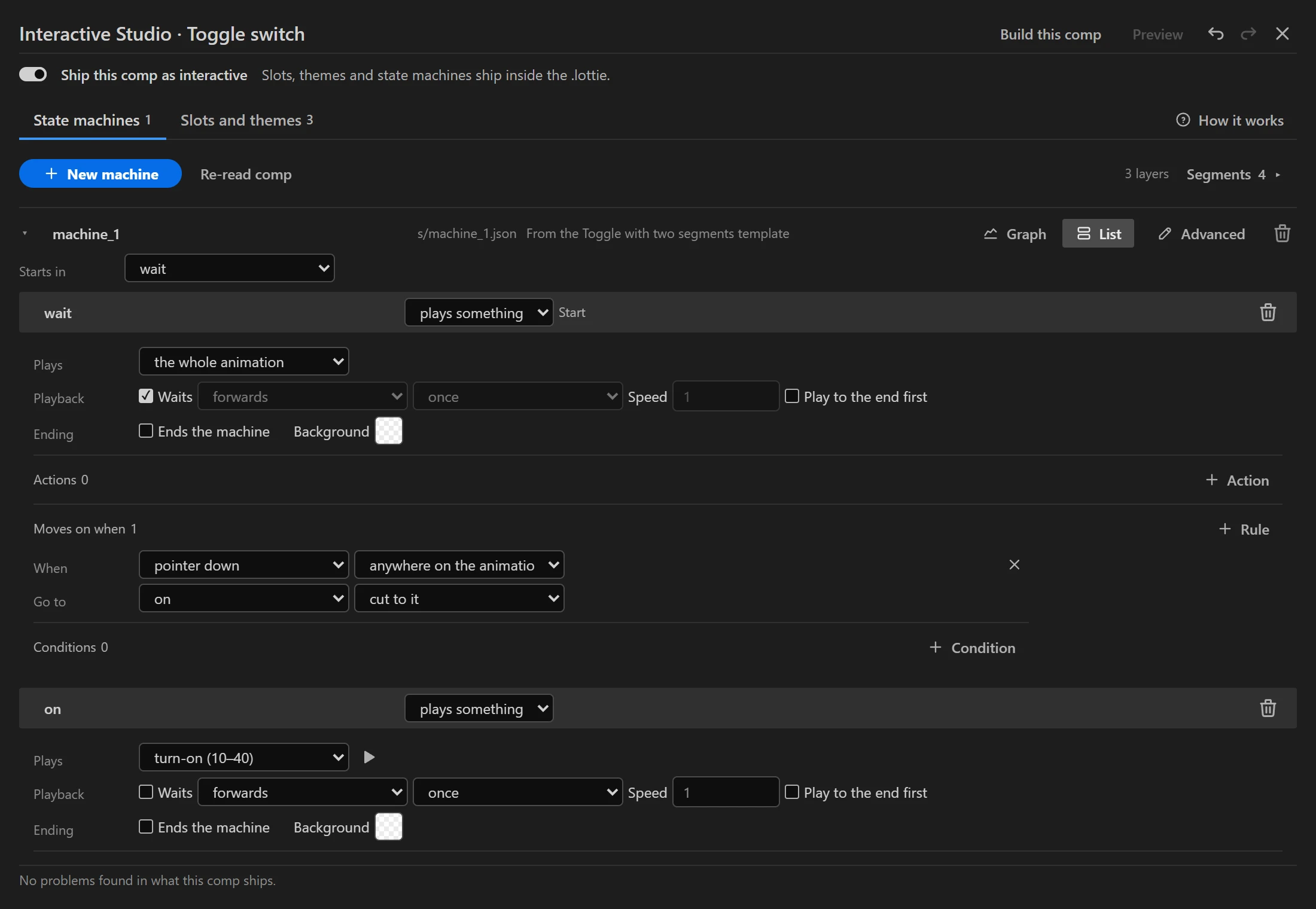
A state
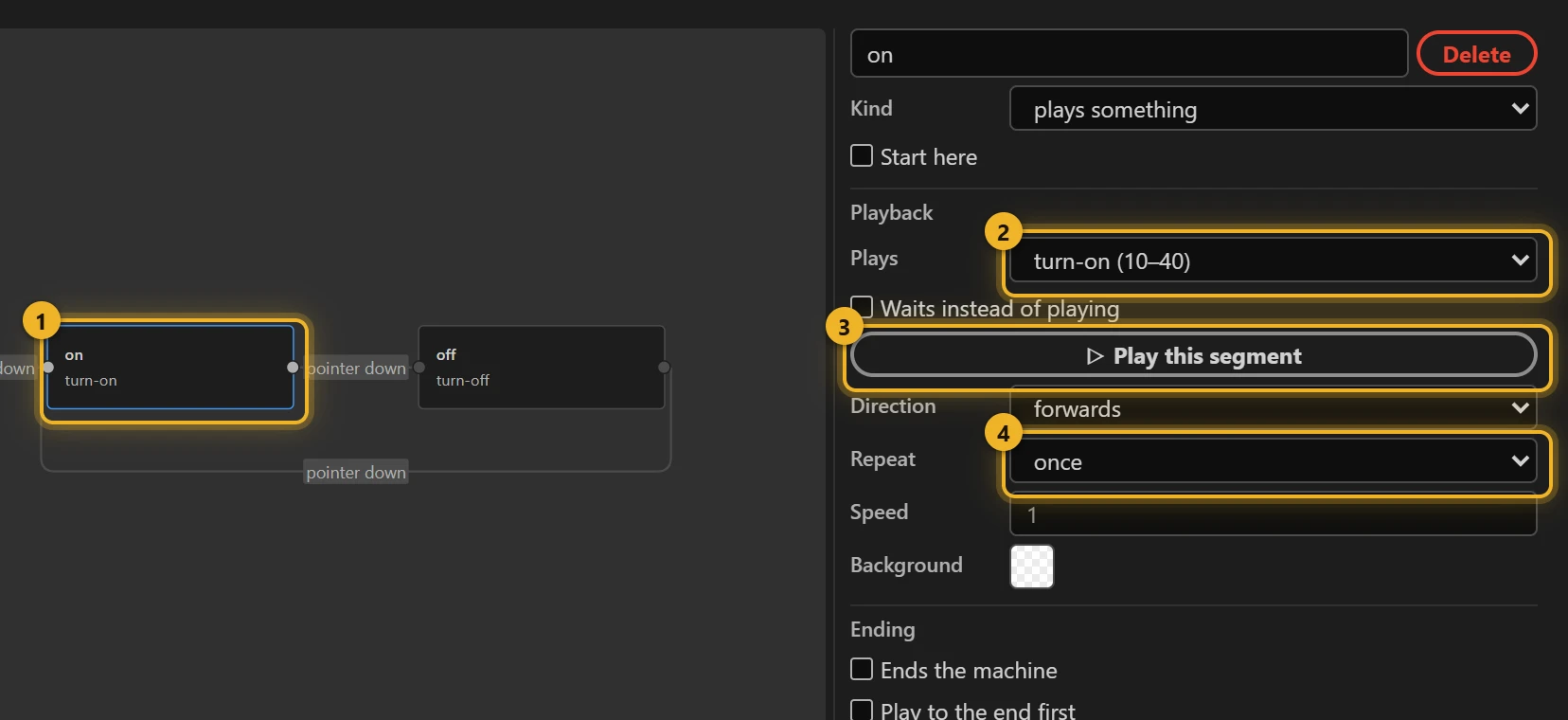
Pick a state 1 to edit it on the right:
- Kind: plays something, or only listens, from anywhere (a hub whose transitions apply from every state).
- Start here: the machine's first state.
- Plays 2: which segment; Play this segment 3 previews it.
- Direction, Repeat 4, Speed, Background.
- Ending: whether this state ends the machine.
Transitions are guarded by inputs: a Boolean, a Number, a String or an Event. Listeners set or toggle those inputs on clicks and pointer movement; your own code can set them too.
Slots and themes
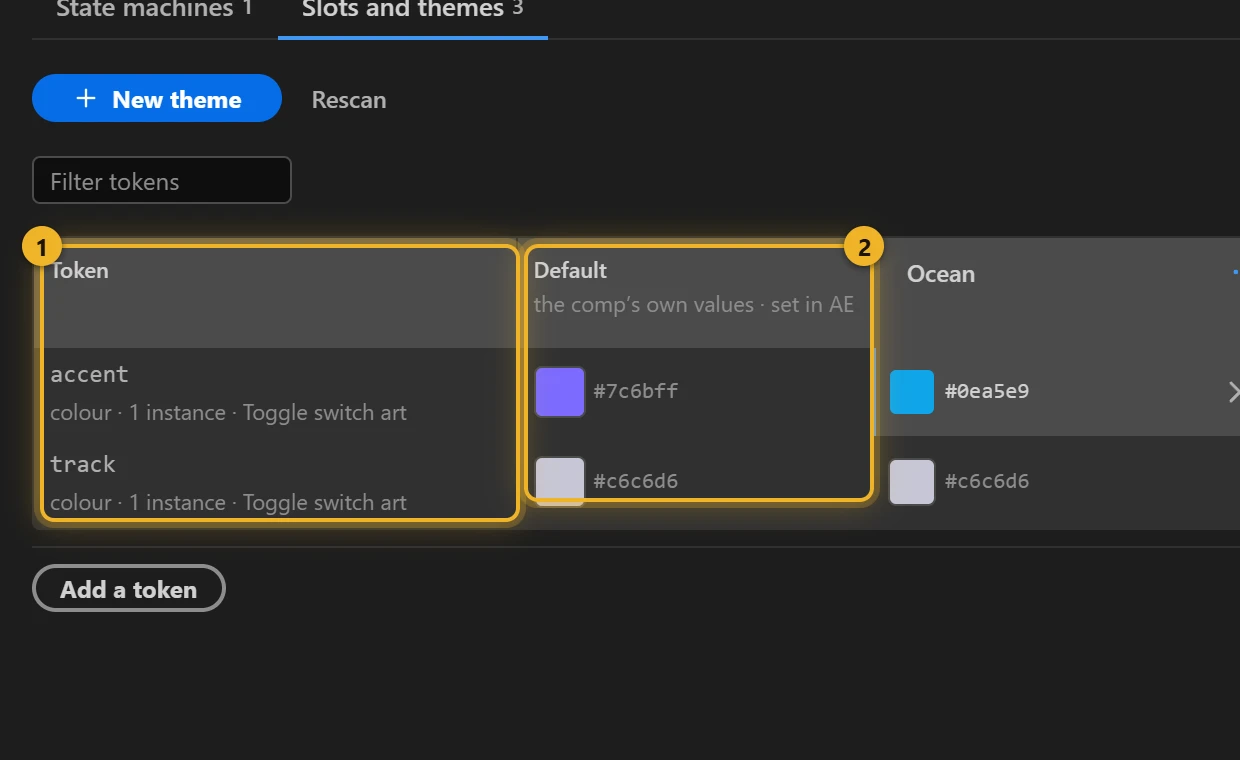
A slot (token) is a property the file exposes so a player or a theme can change it: a colour, a number, a position, a text. The table lists every token of this comp 1 with its Default value 2, the value set in After Effects.
Add a token
Add a token 1 lists the properties inside the comp 2 that can become tokens (fills, strokes and other values) with their current value. Add promotes one to Essential Graphics for you.
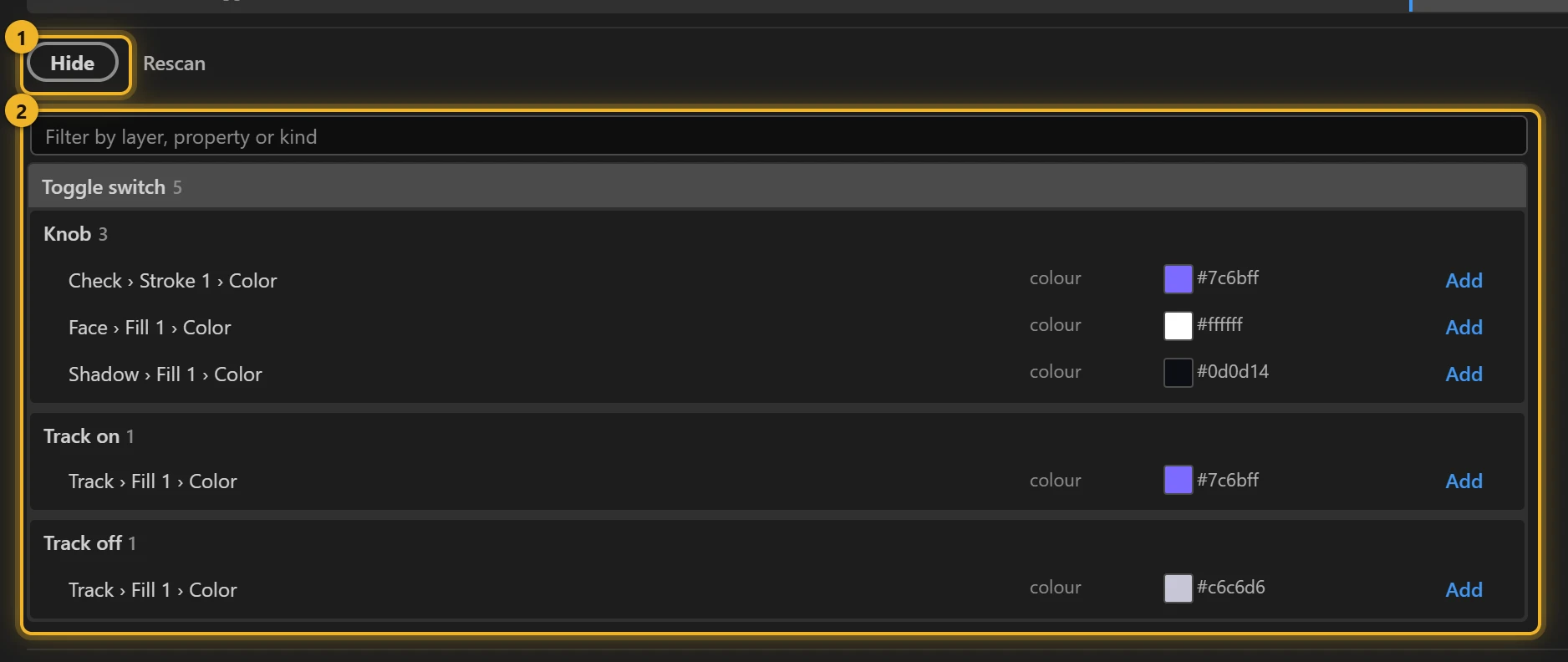
You can also promote a property by hand in After Effects (drag it from the Timeline into the Essential Graphics panel) and press Rescan.
A gradient cannot go into Essential Graphics. Rename its Gradient Fill or Gradient Stroke to slot: <id> and save the project, then Rescan: it appears as a token whose Default shows the ramp, and a theme's cell opens one colour per stop (Gradient themes). An image layer named slot: <id> works the same way; its cells have Choose… for a picture (Image themes).
A property that belongs to an effect (the colour of a Drop Shadow, for example) is marked themes do not change this. It still ships in the file, but no player applies a theme to effect settings, so a theme leaves it as it is. To recolour a shadow or glow with a theme, put that colour on a shape fill or on text instead.
Themes
New theme (or + in the table) adds a column 1 that starts from the default values. Change any token in that column; the rest keep their defaults. A colour opens AXO's colour picker: drag in the square and the hue strip, or type a Hex or R G B value. The new colour applies when you press Enter (which also closes the picker), release the mouse or close the picker; Esc puts back the colour it opened with. Rename a theme by typing into its name; its ··· menu holds the rest.
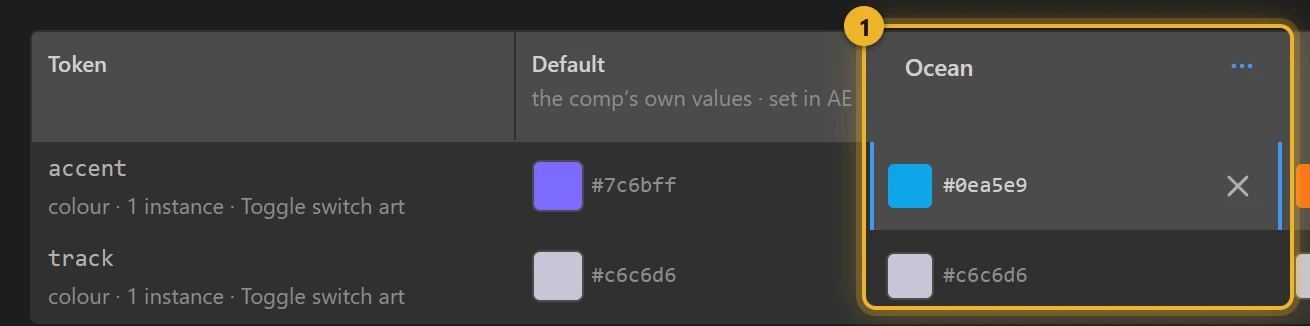
A state machine can switch themes too (a Switch theme action), so a toggle can change the whole palette.
Build and test
Build this comp (1; Rebuild after the first build) builds the .lottie and opens the Test player 2 beside the editor. It plays exactly the file that was built: pick the state machine 3 and click the animation to drive it.
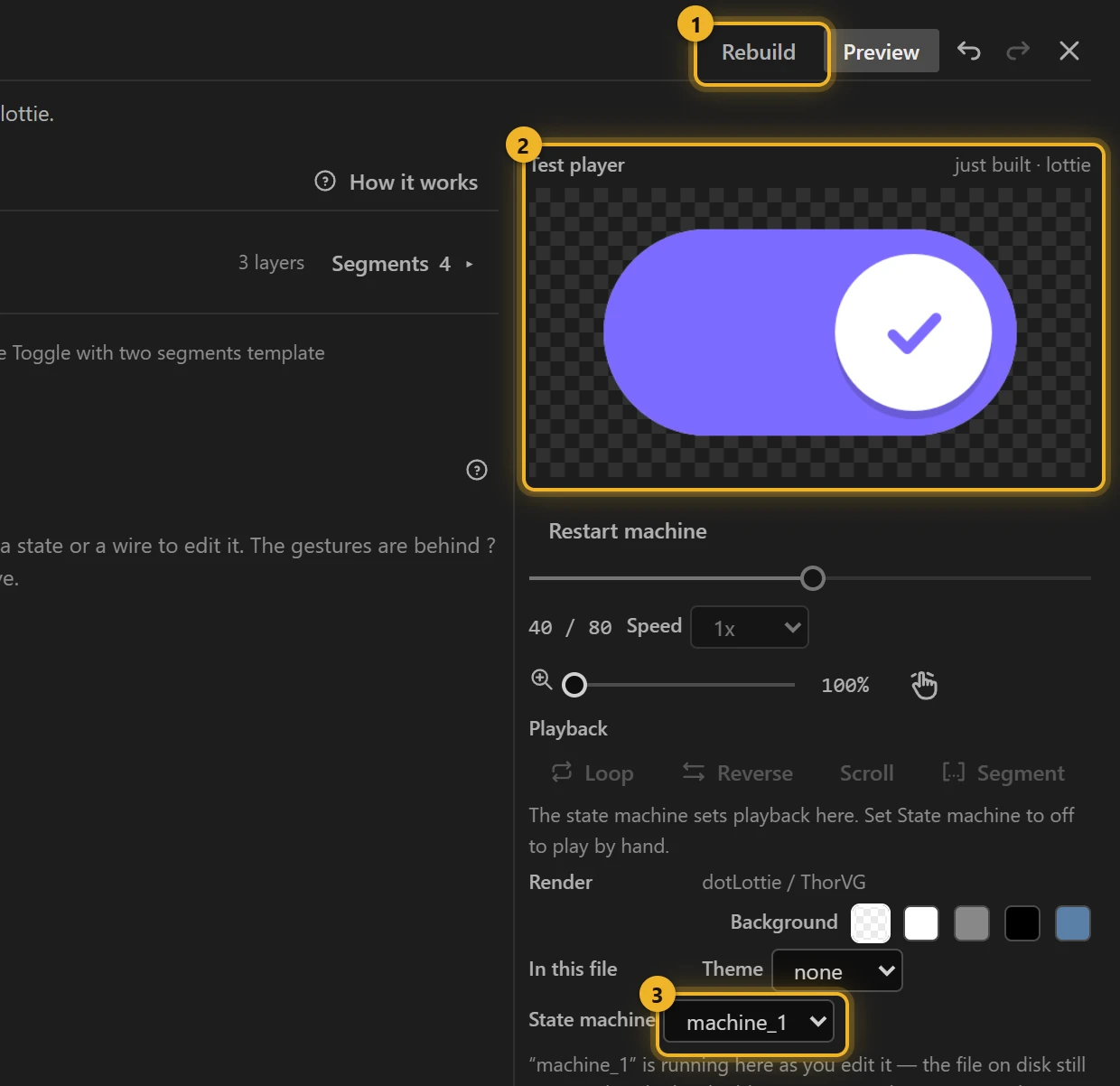
Rebuild after an edit; the test player follows. The Studio builds just for the test player and keeps the result in memory: nothing is written to your output folder, nothing is added to Files, and nothing stays on disk. When it is right, close the Studio and press Build in the Build tab: that writes the file where your export settings say.
In the trial version the Studio and the test player work in full, but Build writes interactive comps as plain animations: themes, state machines and a shared archive are in the full version.
While a state machine runs, it drives the playback. Speed, Loop, Reverse, Scroll, the segment chips and the timeline are greyed out, because the machine sets them itself. The segment line shows the state the machine is in, for example state "rest" · segment idle · waits. Pause and Stop are replaced by Restart machine. To play the animation by hand, set State machine to off.
Under Inputs, the Pointer buttons (pointer enter, click, pointer exit …) send that gesture to the player the way the mouse would, so the machine's listener runs all of its actions. Fire on an event row sends only that one event. When a listener does more than fire the event, the row says so: on Hover + click, valueEnter — from pointer enter — Fire alone skips: SetBoolean value_hovered to true. A listener tied to one layer has no button; use the mouse on that layer in the player.
Tutorials
Start here: Interactivity: the overview, what a .lottie v2 carries and what plays it.
The editor in depth: State machines, step by step, with every control, how the player behaves, and every Studio warning.
Slots in depth: Slots and themes, from Essential Graphics to the page.
First steps: Toggle with two segments, from opening the Studio to the web page.
State machine templates: every template, each with its own example.
Slots and themes: Tokens and themes, Themes by example, Themes lab, Gradient themes, Image themes.
Every building block: each trigger, condition, action and setting, with where it is shown (the templates table also lists the two bigger machines, a music player and a thermostat).