
Pack several comps into one .lottie
A dotLottie file can hold several animations (the icons of a set, the states of a screen), each with its own themes and state machines. One file to load, one file to cache. This page packs them; Several animations in one file is about a machine that switches between them.
1. Choose the comps
In Build, switch on lottie and tick the comps that belong together.
2. Pack them together
Choose One .lottie archive 1 instead of One file per comp, and type the archive's name in the field beside it 2.
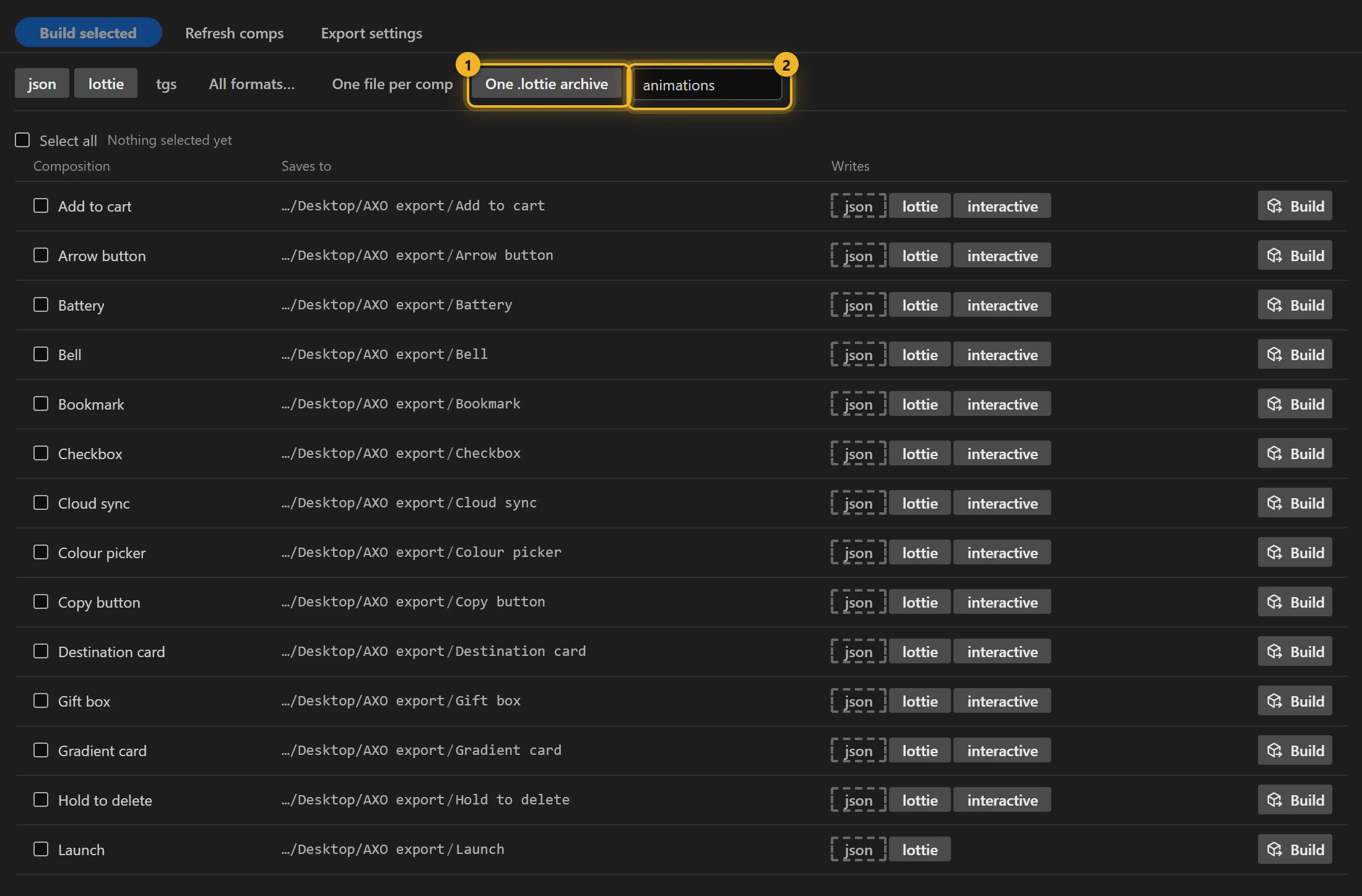
Each ticked comp becomes one animation inside the archive, keeping its own images, tokens, themes and machines (set up per comp in the Interactive Studio). Identical images are stored once.
3. Set up the archive in the Studio
The archive gets its own row in the list 1, with the comps it packs under it. Open it: under the name, Interactive 2 opens the Interactive Studio for the whole archive, not for one comp.

The title names the file and the animation you are looking at 1. One switch, Ship this archive as interactive 2, turns slots, themes and machines on for every animation inside. The Studio gets a tab of its own, Archive 3:
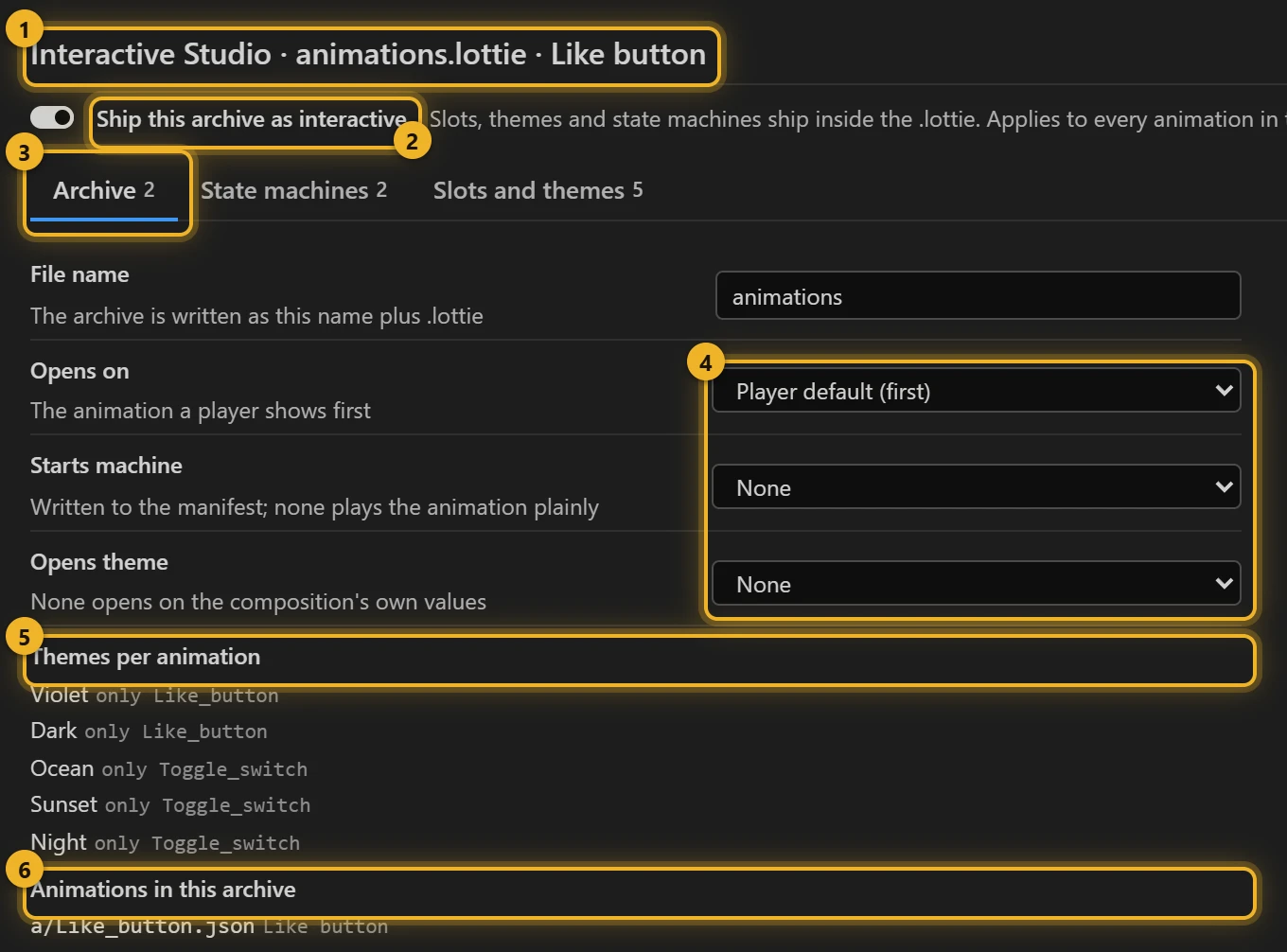
- Opens on · Starts machine · Opens theme 4: what a player shows first: which animation, which state machine starts, which theme is applied. Player default is the first animation, no machine, the comp's own colours.
- Themes per animation 5: every theme and which animations carry it. A theme belongs to the comp you made it in, so it goes with that comp's animation.
- Animations in this archive 6: the files inside,
a/<name>.json, and the comp each one comes from. These names are the ids you pass toloadAnimation()(step 5).
The other two tabs work as they do for one comp, with one difference. State machines lists the machines of all animations in the archive, and a machine made here goes to all of them. Slots and themes edits the tokens of the animation named in the title.
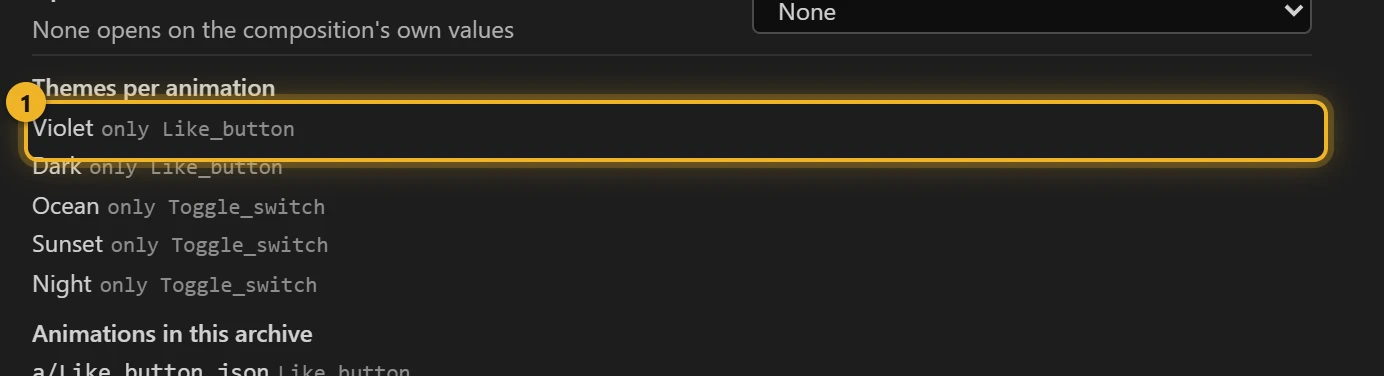
Each theme's line 1 says which animations carry it: all animations, all except … or only … (whichever list is shorter), or no animation. To give a theme to another animation, open that comp's own Studio and add the theme there:
Web players and the "Opens" choices
dotlottie-web does not apply Starts machine or Opens theme by itself. The AXO Preview applies them. On your page, pass stateMachineId in the player config and call setTheme() after load; the Studio prints the exact line under the three choices.
Build archive (top right) writes the file, the same as Build selected in Build.
4. Build
Press Build selected. The archive lands in Files 1, and its row says what it carries 2: how many animations, themes and machines.

5. Use one animation from it
js
const player = new DotLottie({ canvas, src: "animations.lottie" });
player.addEventListener("load", () => player.loadAnimation("Like_button"));
The id is the file name without .json, as the Archive tab lists it (step 3), and the archive's manifest.json lists them too.
Importing it back
To AE on the archive's row imports every animation in it, each as its own comp.