
Toggle with two segments: a toggle switch
A press turns the switch on, the next press turns it off, and each way is its own animation. The Toggle with two segments template plays one marker's segment going on and another's going off, unlike Toggle, which plays one animation forward and back. This page also walks through the Studio from the very start, so it is a good first interactive tutorial. The pictures use the sample comp Toggle switch (folder Interactive examples).
Try it: Click the switch, then try the theme chips. How it works: A press (pointer down, before the button comes back up) flips value: on plays turn-on (10–40), off plays turn-off (50–80). Each direction is its own segment, so the switch never snaps back to frame 0. The file is the .lottie the panel wrote, played by dotlottie-web, the player a web page uses.
Loading the player…
What you need in After Effects
One comp that animates both ways, and four markers with durations on the comp:
| Marker | Frames | What happens |
|---|---|---|
off | 0–10 | the switch resting off |
turn-on | 10–40 | knob slides right, track fills |
on | 40–50 | resting on |
turn-off | 50–80 | back again |
Give every marker a duration (Alt/Option-drag the marker in the timeline). A marker without one is a moment, not a segment.
turn-on and turn-off are 30 frames, half a second, slower than a switch in a product should be (150–250 ms, about 10–15 frames at 60 fps). This comp is also the sample in the public demo, which stays as it was recorded; the newer examples on these pages use the shorter timings.
1. Open the Interactive Studio
In Build, switch on lottie, open the comp's row and press Interactive.
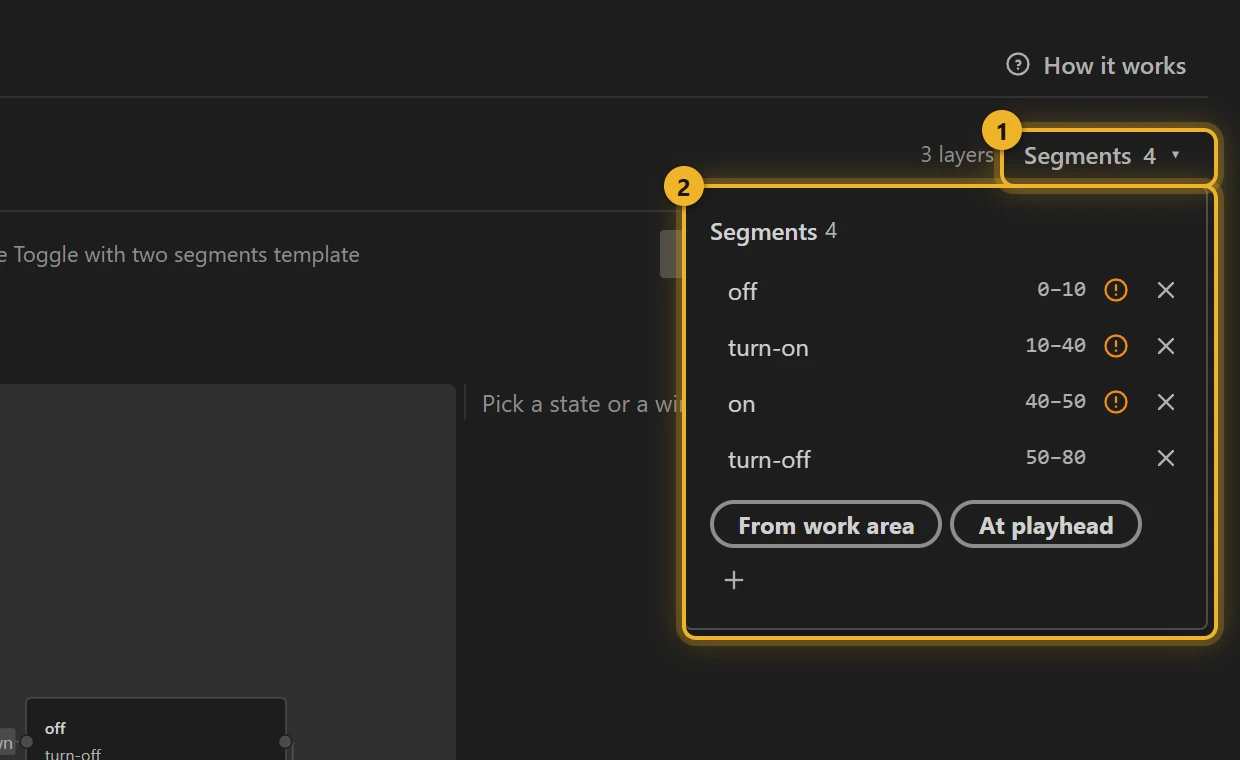
Segments 1, at the top right, lists your markers 2 with their frames.
2. Ship it as interactive
Switch on Ship this comp as interactive 1. From now on the build writes the machines and themes into the .lottie.

3. Start from a template
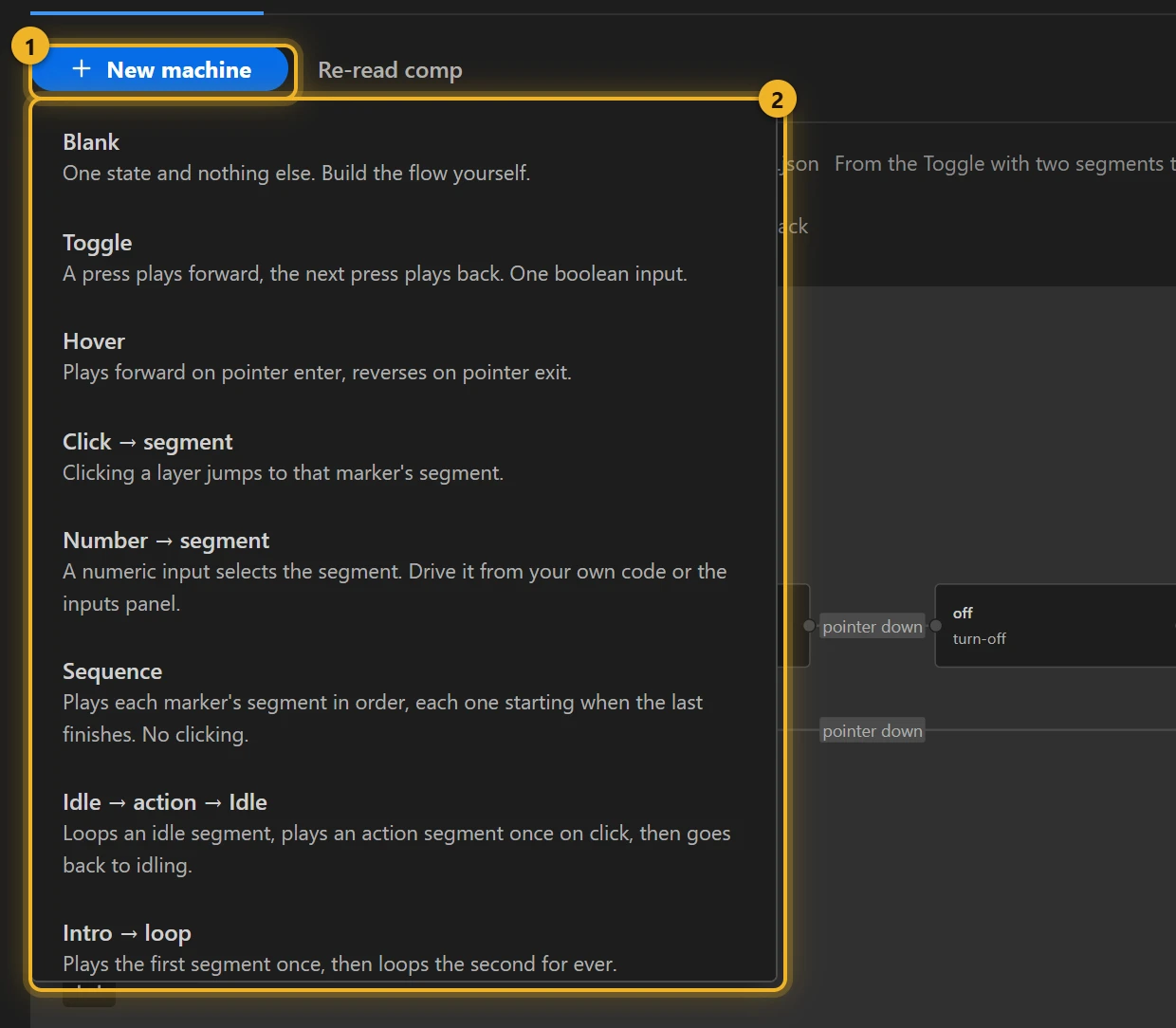
Press New machine 1 and pick Toggle with two segments from the list 2: a press plays the “turn-on” segment, the next press plays “turn-off”.
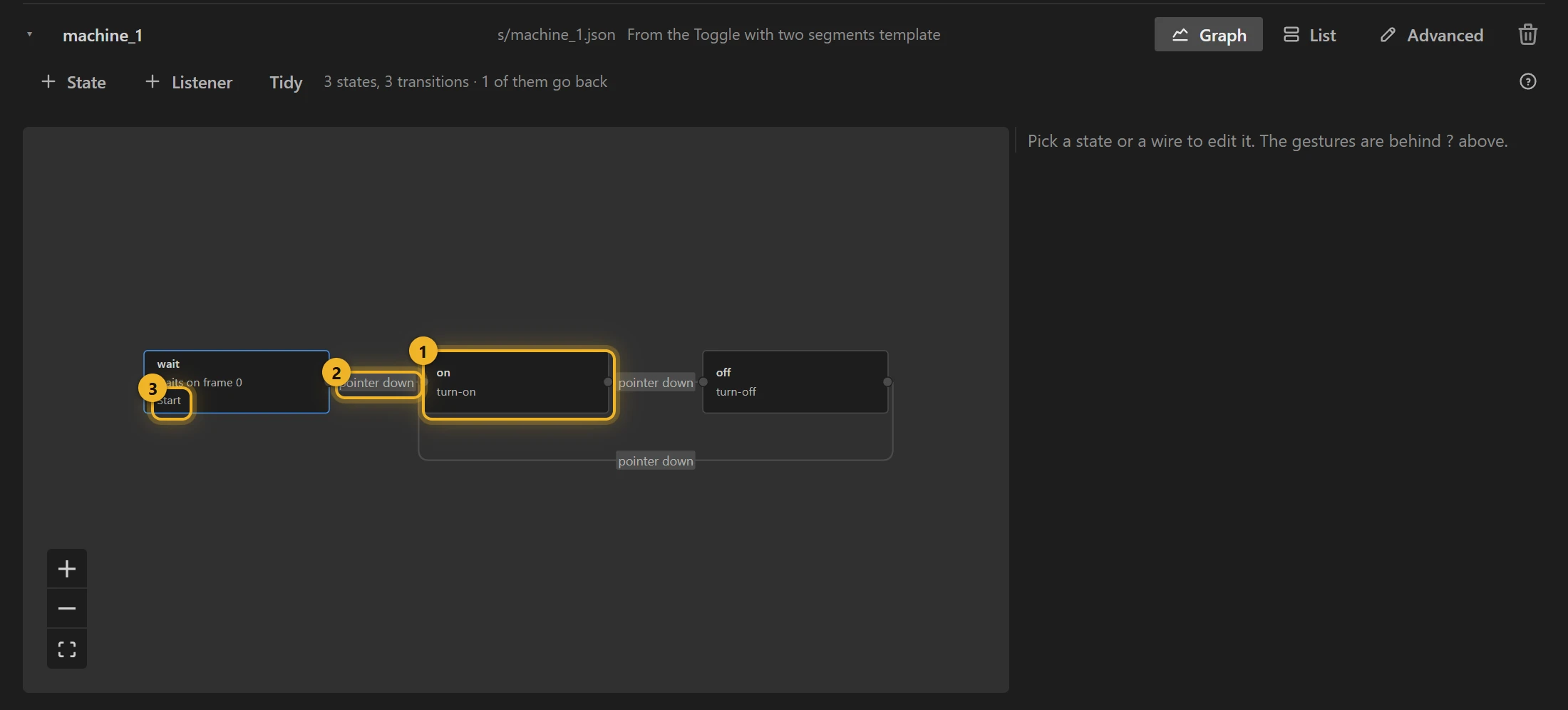
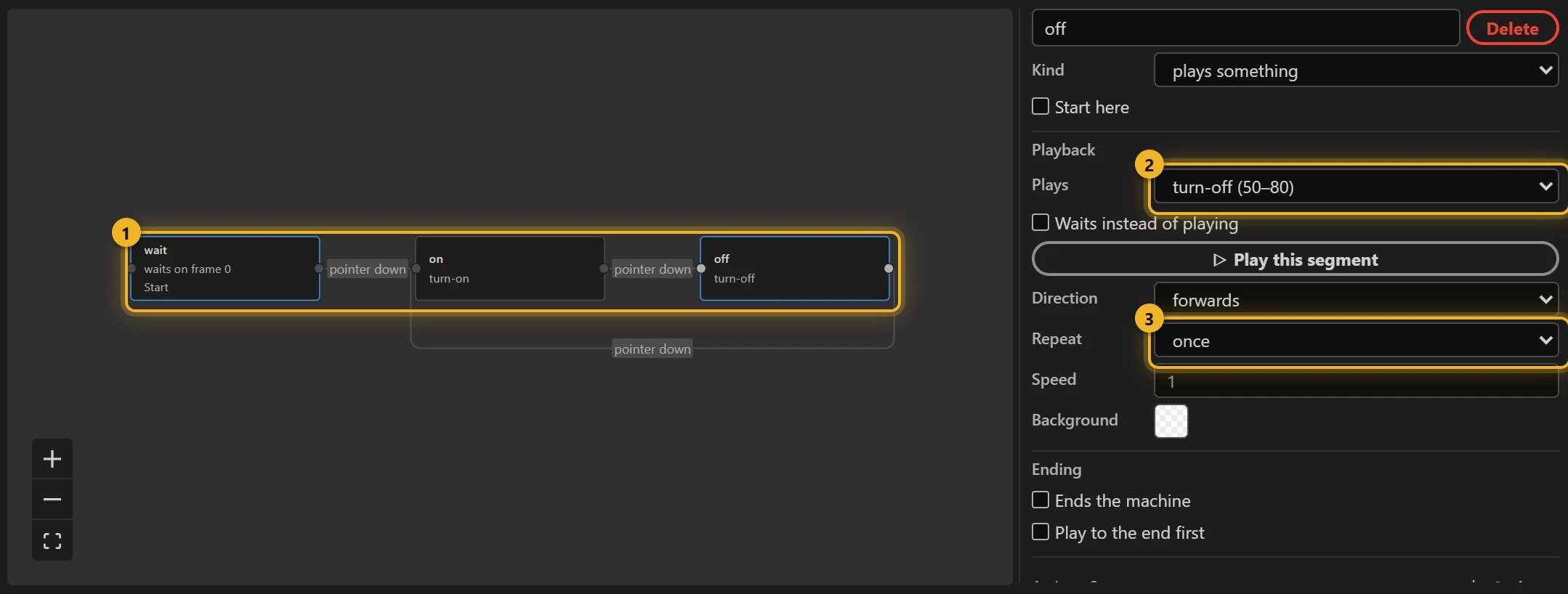
The machine appears as a graph: wait (3, the start) → on 1 → off, each wire triggered by pointer down 2.
4. Check each state
Click on 1. On the right, Plays 2 should be turn-on (10–40); press Play this segment 3 to see it. Set Repeat 4 to once so it stops on the last frame.
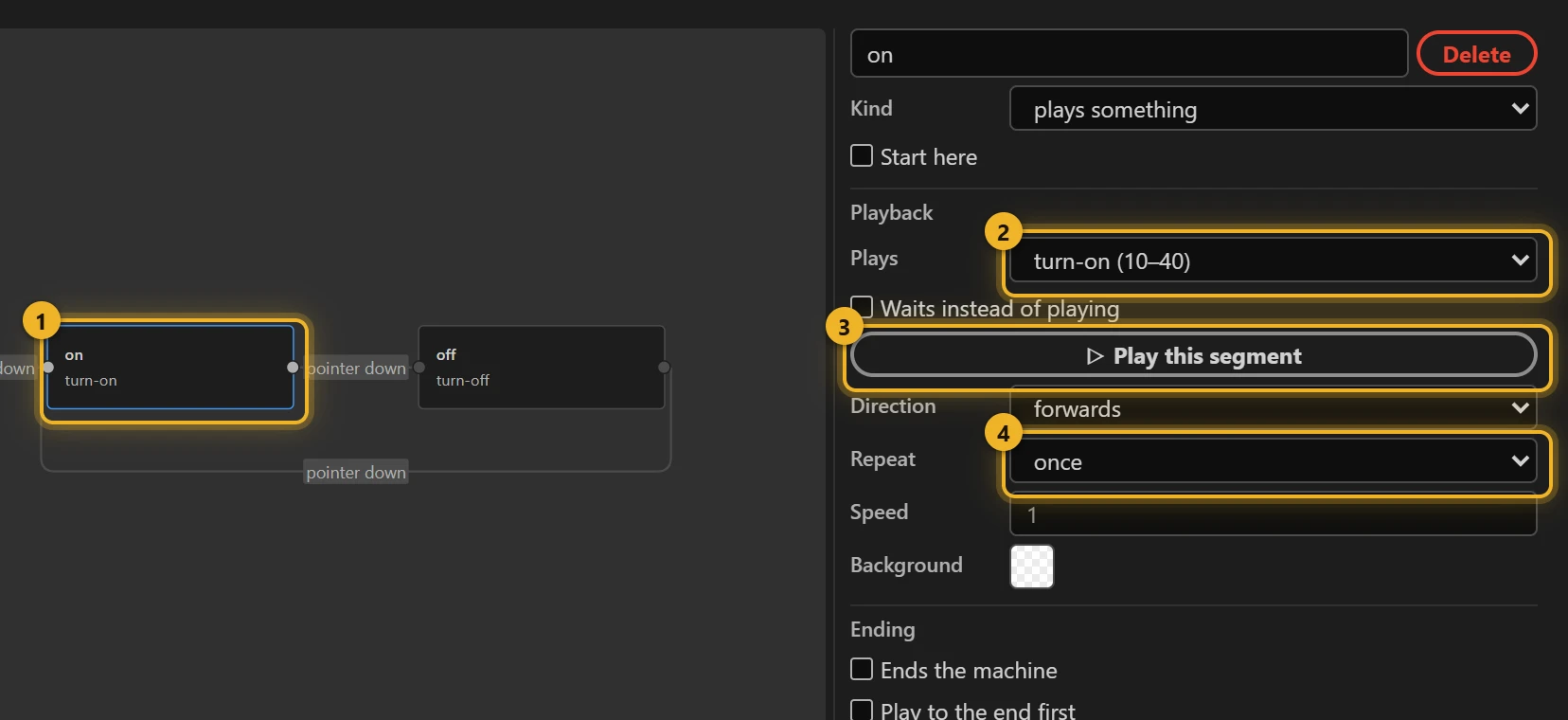
Then click off. Plays 2 should be turn-off (50–80): the template prefers a marker that moves (turn-off, switch-off, unlike) over the resting pose off (0–10). If your comp names them differently, pick the right one here. Repeat once 3.
5. Build and test
Press Build this comp. The Test player opens beside the editor with the file that was just written. Pick the machine under State machine and click the switch: it turns on; click again, it turns off.
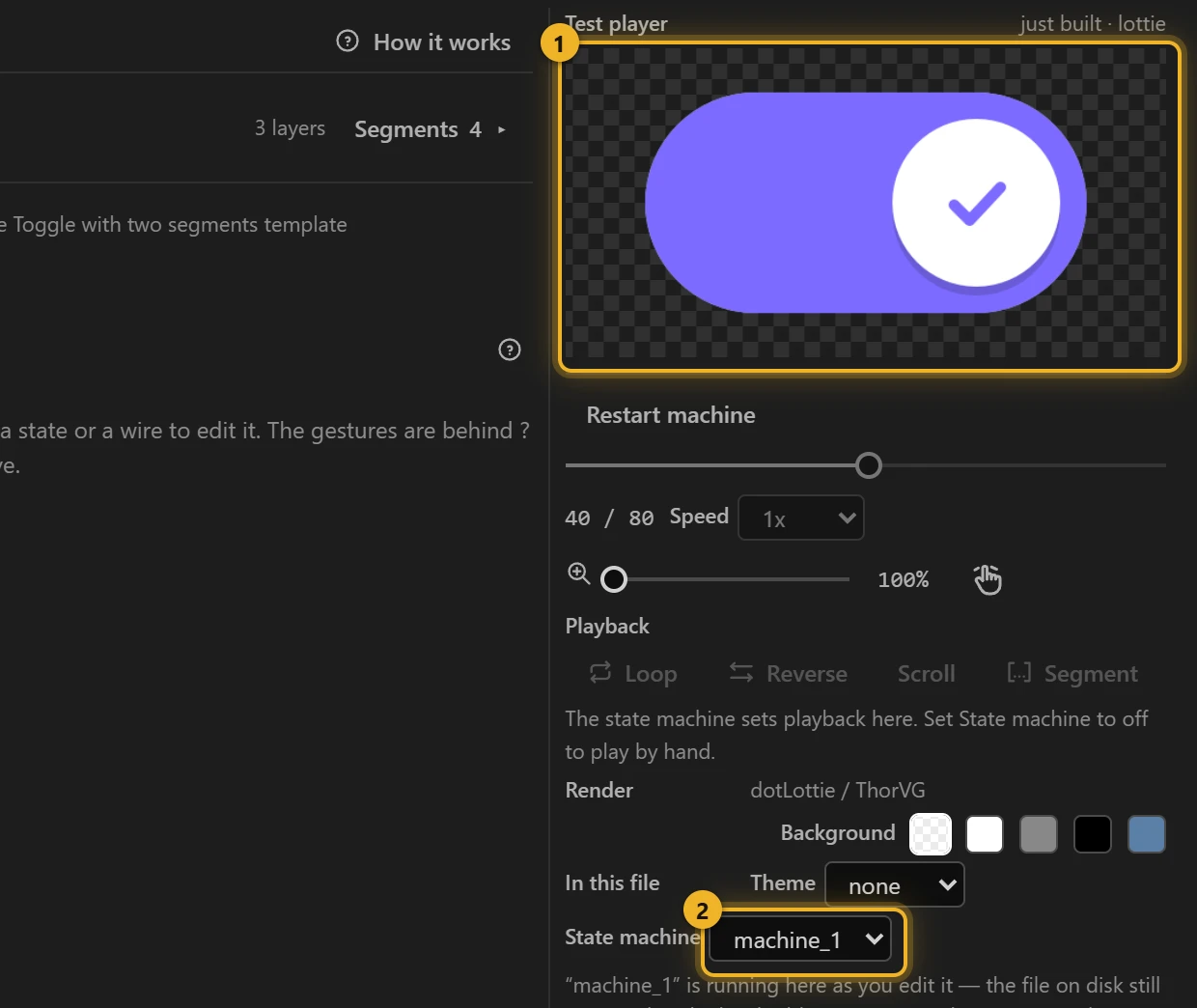
Changed something? Press Rebuild; the test player follows.
6. Ship
The .lottie is in Files and in your output folder. In a web page, dotLottie's player starts the machine with:
html
<canvas id="toggle" width="240" height="140"></canvas>
<script type="module">
  import { DotLottie } from "https://cdn.jsdelivr.net/npm/@lottiefiles/dotlottie-web@0.81.0/+esm"; // the version these pages use
  new DotLottie({
    canvas: document.getElementById("toggle"),
    src: "Toggle switch.lottie",
    autoplay: true,
    stateMachineId: "machine_1", // starts the machine once the file loads
  });
</script>
Use the machine's id from the Studio (here machine_1, shown as s/machine_1.json).
Going further
- Give the toggle a colour per theme: Tokens and themes, Themes by example.
- Every other template, each with its own example: State machine templates.
- Other templates: Hover (plays forward on pointer enter, back on exit), Button (pressed on pointer down, released on up), Loading → done (loops until your code fires the done event).