
Build
Build turns compositions into files. It lists every comp in the project: the formats this build writes 1, where each comp is saved 2, what it writes 3, and Build selected 4.
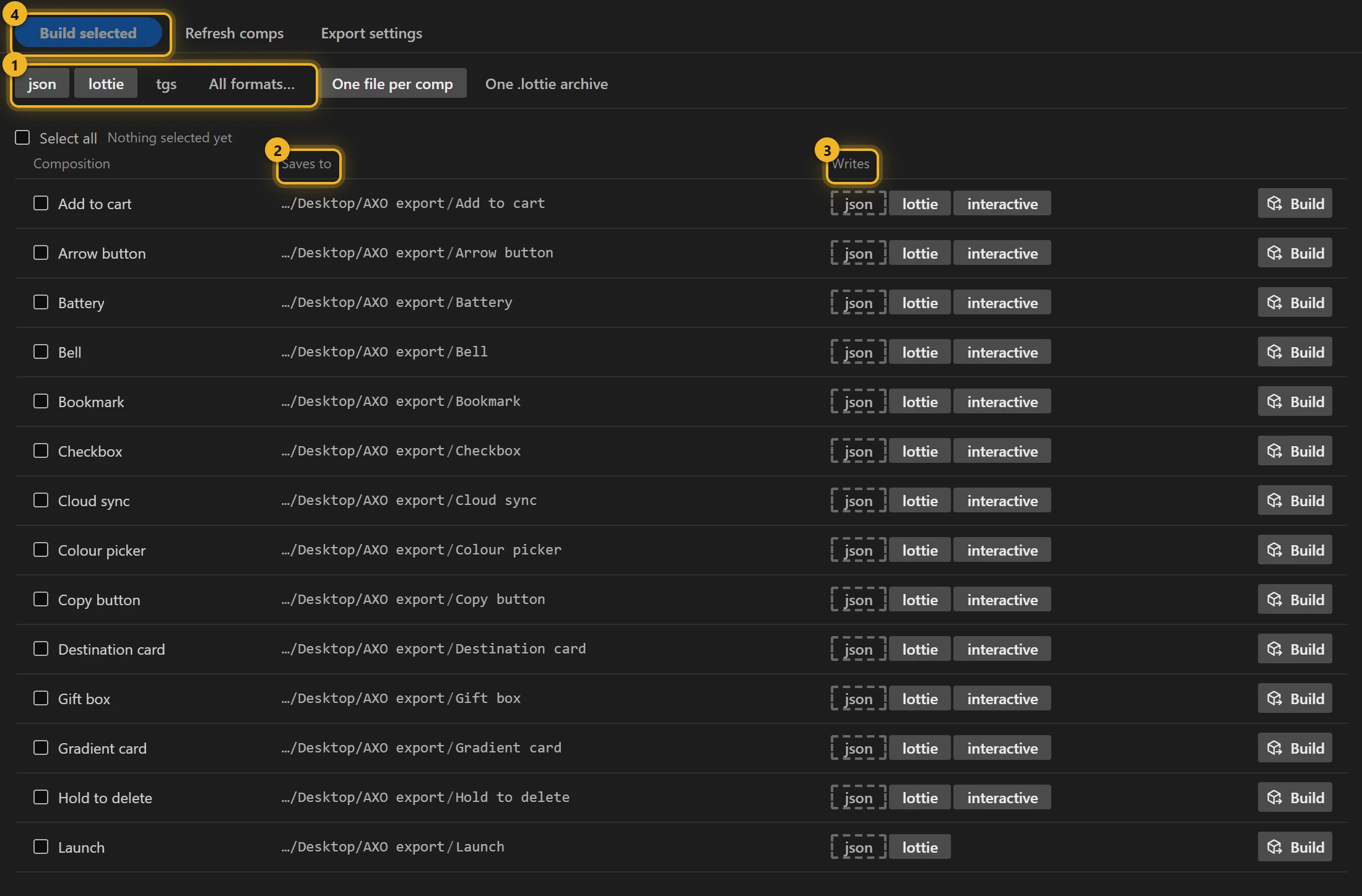
Choose comps
Tick the comps to build (or Select all) and press Build selected. Each row also has its own Build button. Refresh comps re-reads the project after you add or rename comps.
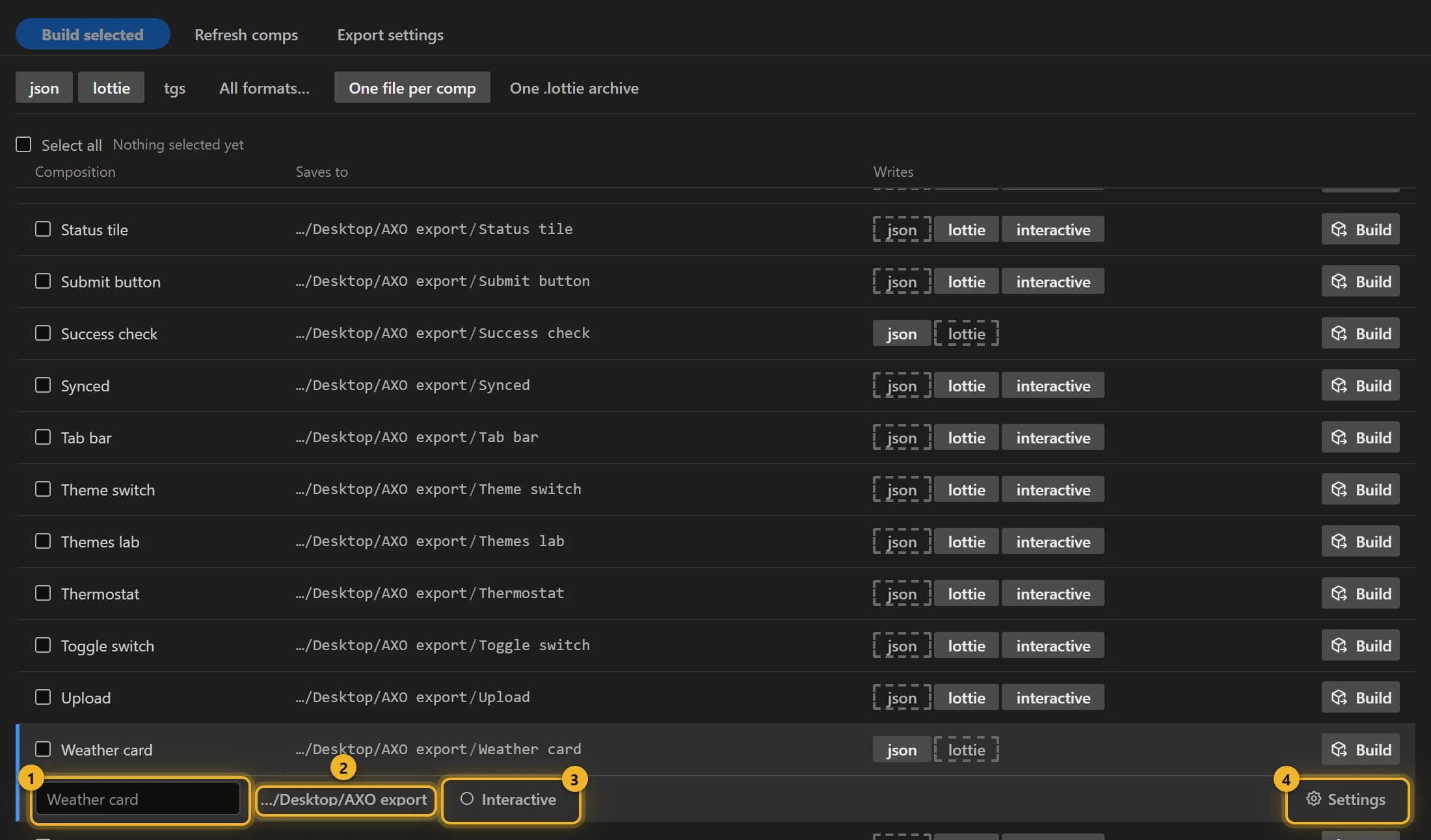
Click a row to open it. There you can type a file name for that comp 1, set a folder just for it 2, open its Interactive setup 3, and open its Settings 4: the same options as Export settings, for this comp only.
Formats
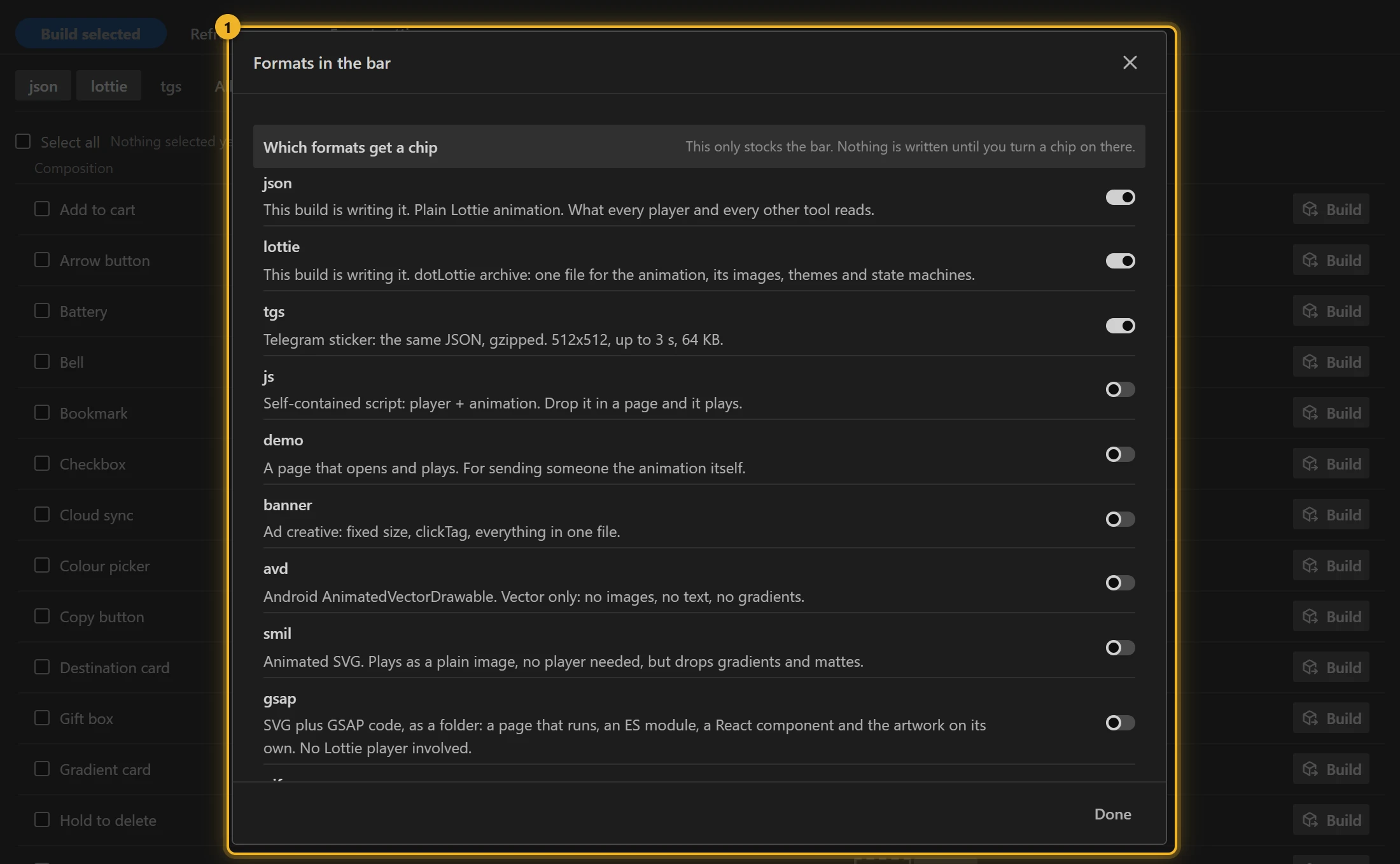
The chips at the top (json, lottie, tgs) switch a format on for the whole build. All formats… opens Formats in the bar 1, which lists every format and what it is for. It only chooses which formats get a chip; nothing is written until you turn the chip on.
| Format | What it is |
|---|---|
json | Lottie for web and apps |
lottie | dotLottie v2: the animation plus its images, slots, themes and state machines |
tgs | Telegram sticker, checked against Telegram's own limits |
| JS bundle | Player and animation in one script |
| Demo page | A page that plays the animation, to send for review |
| Banner page | Ad-ready HTML, with a click tag |
| AVD XML | Android animated vector drawable |
| SVG (SMIL) | Animated SVG that plays with no player |
| GSAP folder | SVG plus GSAP timeline code. Layer motion animates. Animated colours, shape sizes and dashed strokes are drawn at their first frame. Skew, Auto-Orient, and a fill or stroke placed above paths it should not paint are not carried. The export report lists all of it |
gif, webm, avif, webp | Video of the comp rendered by After Effects itself, then encoded with your ffmpeg |
On a row, click a format chip to drop that format for that comp only.
The page in the GSAP folder fits the animation inside the window: a comp smaller than the window draws at its own size, a larger one is scaled down to fit, and the page itself never scrolls. It loops at the comp's end, as the other players do, so motion keyed past the end (on a layer or inside a precomp) is cut there.
Video, GIF and image sequences inside a comp
A video, animated GIF or image-sequence layer in the comp is written into the Lottie frame by frame. Each distinct frame becomes one image, and identical frames are shared, also between two clips. The layer keeps its transform, masks, timing and time remap.
The panel reads MP4 and H.264 .mov, GIF, and PNG, JPG or WebP sequences itself. After Effects renders everything else it can open (ProRes, HEVC, TIFF sequences), a few frames at a time, and it also renders phone and screen recordings with a variable frame rate. After Effects is busy for a moment between batches, and Cancel stops between them.
The frames follow Compression and Max image size in Export settings, so lower the quality or the size to get a lighter file. A long or busy clip is heavy: the row says how heavy, and Audit marks such layers before you build. None of this needs ffmpeg or the Render Queue, and it works in the trial.
Video of the comp
After Effects draws gif, webm, avif and webp itself, so every effect, plug-in and 3D layer looks exactly as it does in your comp. AXO adds the comp to the Render Queue for a moment, renders its work area to a temporary image sequence, encodes each ticked format from it, and removes the item again. Anything you had queued yourself stays in the queue and is not rendered. Build is the only place AXO writes video; Files and Library do not render it.
After Effects is busy while it renders, and the panel cannot interrupt it. Cancel during the render stops the build once After Effects has finished, and nothing is encoded. During the encoding that follows, the comp row shows its progress and Cancel stops at once. A render you stop in After Effects itself writes no video at all, so you never get a shortened file.
| Format | What it is |
|---|---|
| GIF | Up to 256 colours, one-bit transparency. Plays everywhere. |
| WebM | VP9 video with a real alpha channel, or AV1 (smaller, no transparency). |
| AVIF | AV1 image sequence, usually the smallest file with alpha. |
| WebP | Animated WebP, lossy or lossless. |
Video settings… next to the format chips (shown while a video format is on) holds which of the four this build writes and how:
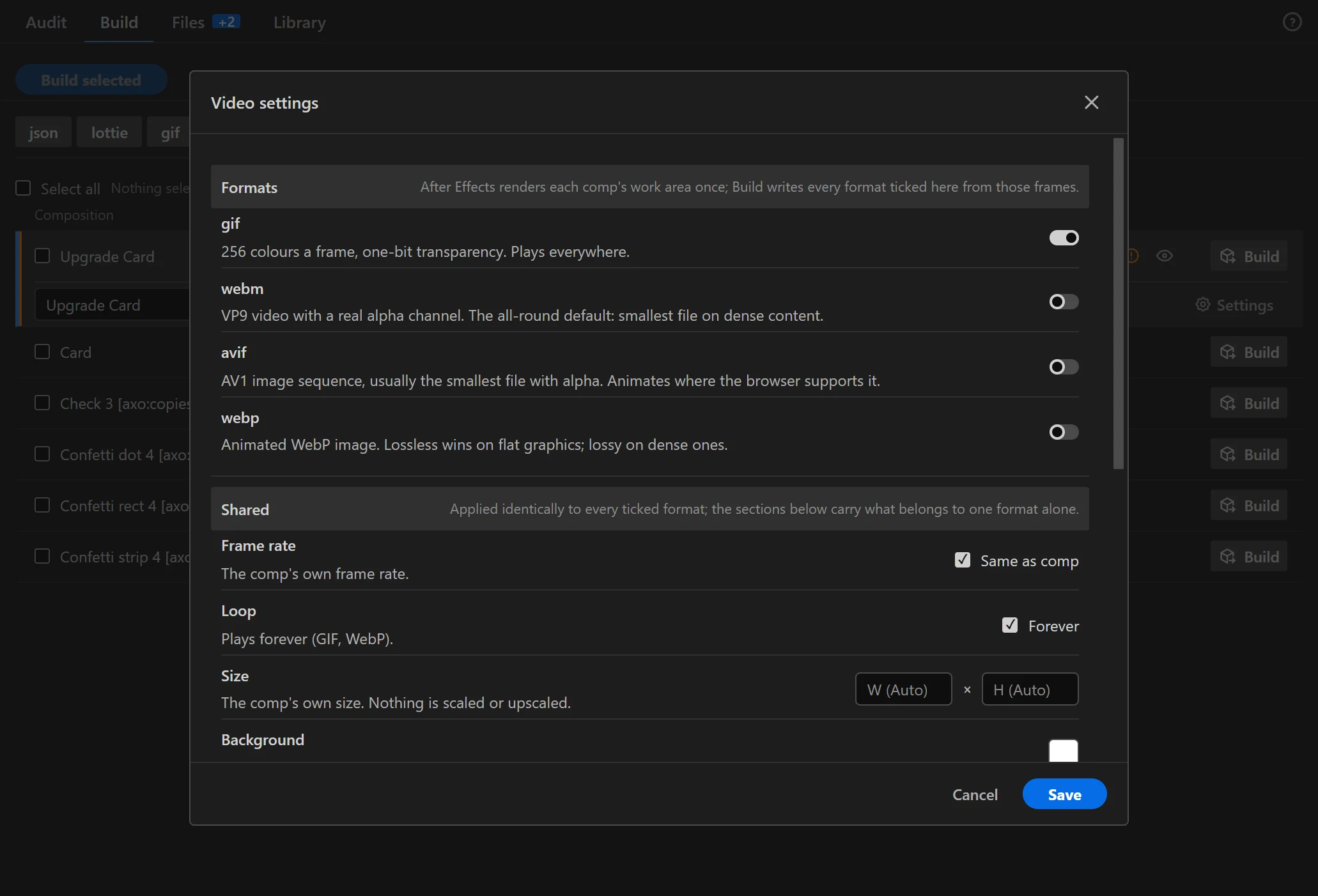
- Shared: quality; frame rate (the comp's own, or one After Effects renders at); size (left empty, the comp's own, up to 8192 px a side); transparency, or the background to flatten onto; Encoding effort for WebM, AVIF and WebP (Fast, Balanced, or Smallest file, which is slower); Loop for GIF and WebP (forever, or a number of plays).
- GIF: colours (2 to 256); Dither (none, Bayer pattern with its scale, Floyd–Steinberg, Sierra), where none gives the smallest file and a dither hides banding on wide gradients; Palette from the whole frame or only the moving parts; and Transparent GIF. GIF transparency is one bit, so soft edges become hard, and a transparent GIF is about twice the size of a flat one.
- WebM: codec VP9 or AV1.
- AVIF: colour detail 4:2:0 or 4:4:4 (crisper coloured edges and small text, larger file), 8- or 10-bit (smoother long gradients). An ffmpeg whose AV1 encoder is SVT-AV1 (Homebrew's, for one) writes 4:2:0 only, and says so.
- WebP: lossy or lossless, and the content type (picture, photo, drawing, icon, text).
A GIF plays at most 50 frames per second, because browsers slow faster GIFs down to 10. A faster comp is resampled to 50 fps and keeps its length.
GIF, WebM, AVIF and WebP need ffmpeg
The document formats work out of the box. GIF, WebM, AVIF and WebP are encoded by ffmpeg, a free video encoder that AXO does not include, so you install it once. Until you do, a video chip refuses to turn on and says why, All formats… and Video settings… say where to get it, and a build that still has one on reports it without rendering the comp. To stop AXO using ffmpeg, press Disconnect in ? › Settings….
Windows
- Download ffmpeg for Windows (gyan.dev) and unzip it anywhere.
- In AXO open ? › Settings…, press Choose… and pick
bin\ffmpeg.exeinside the unzipped folder.
Mac
- Apple silicon (M1 and later): download ffmpeg from osxexperts.net. Intel: ffmpeg for Mac (evermeet.cx, the ffmpeg zip). Unzip it.
- In AXO open ? › Settings…, press Choose… and pick the
ffmpegfile. - If macOS says it cannot be opened: System Settings › Privacy & Security › Open Anyway, then choose it again.
With Homebrew, run brew install ffmpeg-full and press Find in Settings. The plain ffmpeg formula has no WebP encoder and writes AVIF without transparency; Settings says so.
Settings checks the program and lists what it can write. If it lacks one encoder, only that format stays off.
One file per comp, or one archive
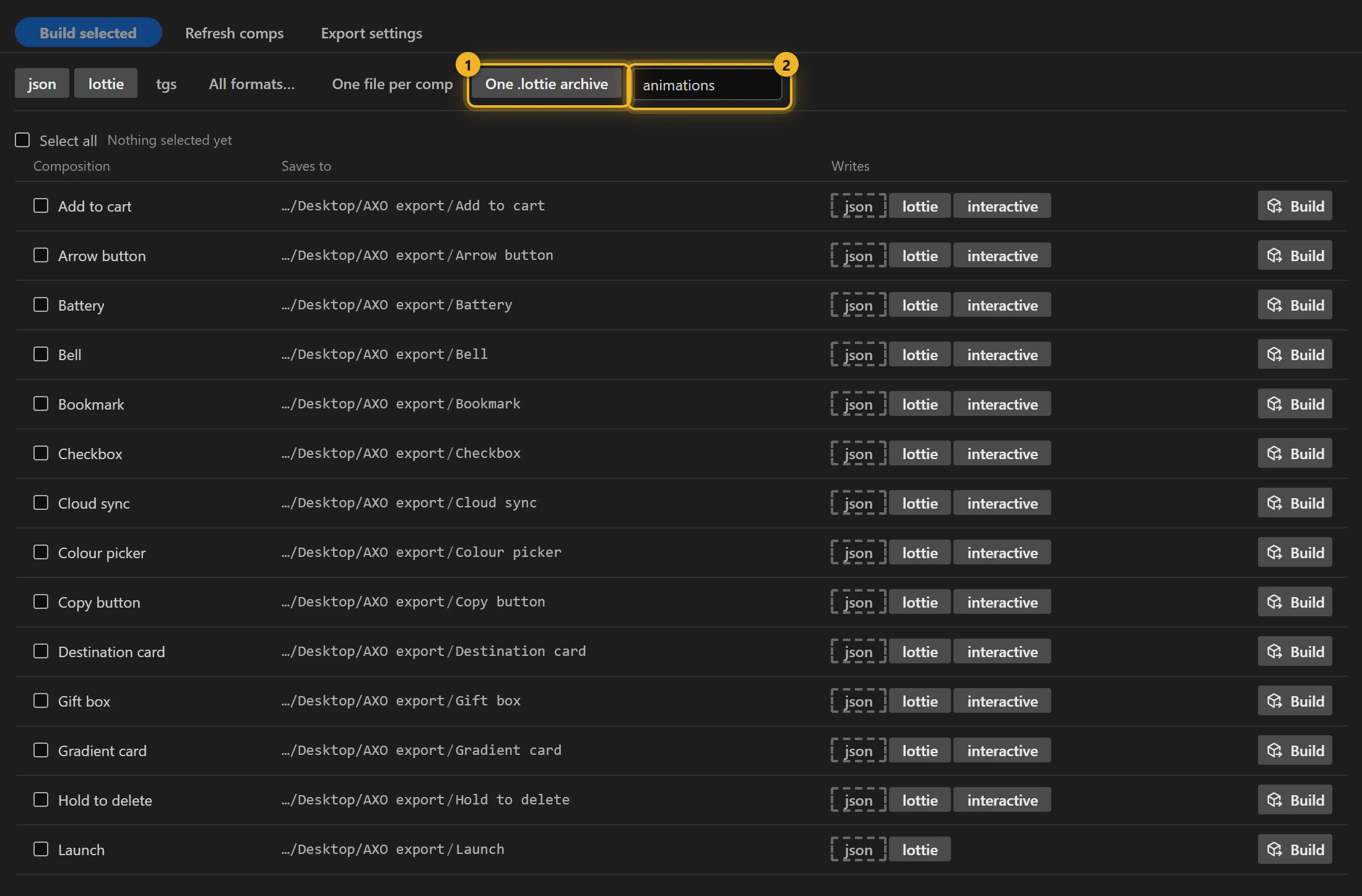
With lottie on, choose One file per comp or One .lottie archive 1. The archive packs every ticked comp into a single .lottie as separate animations, each with its own themes and machines. Type the archive's name in the field beside it 2.
See the tutorial Pack several comps into one .lottie.
In the trial
The trial writes every format except video, one file per comp, as plain animations. The archive, interactive files, video (listed but switched off) and converting audio to MP3 are in the full version, and the trial does not use ffmpeg. The Interactive Studio still builds and plays interactive files so you can try them.
Files written by the trial (.json, .lottie, .tgs, JS and HTML, from Build and from "Export as" in Files) carry a watermark: a few coloured shapes over the animation and marks painted into its images, different on every build. Images are always embedded in the trial. The Studio's own preview has no watermark.
After a build
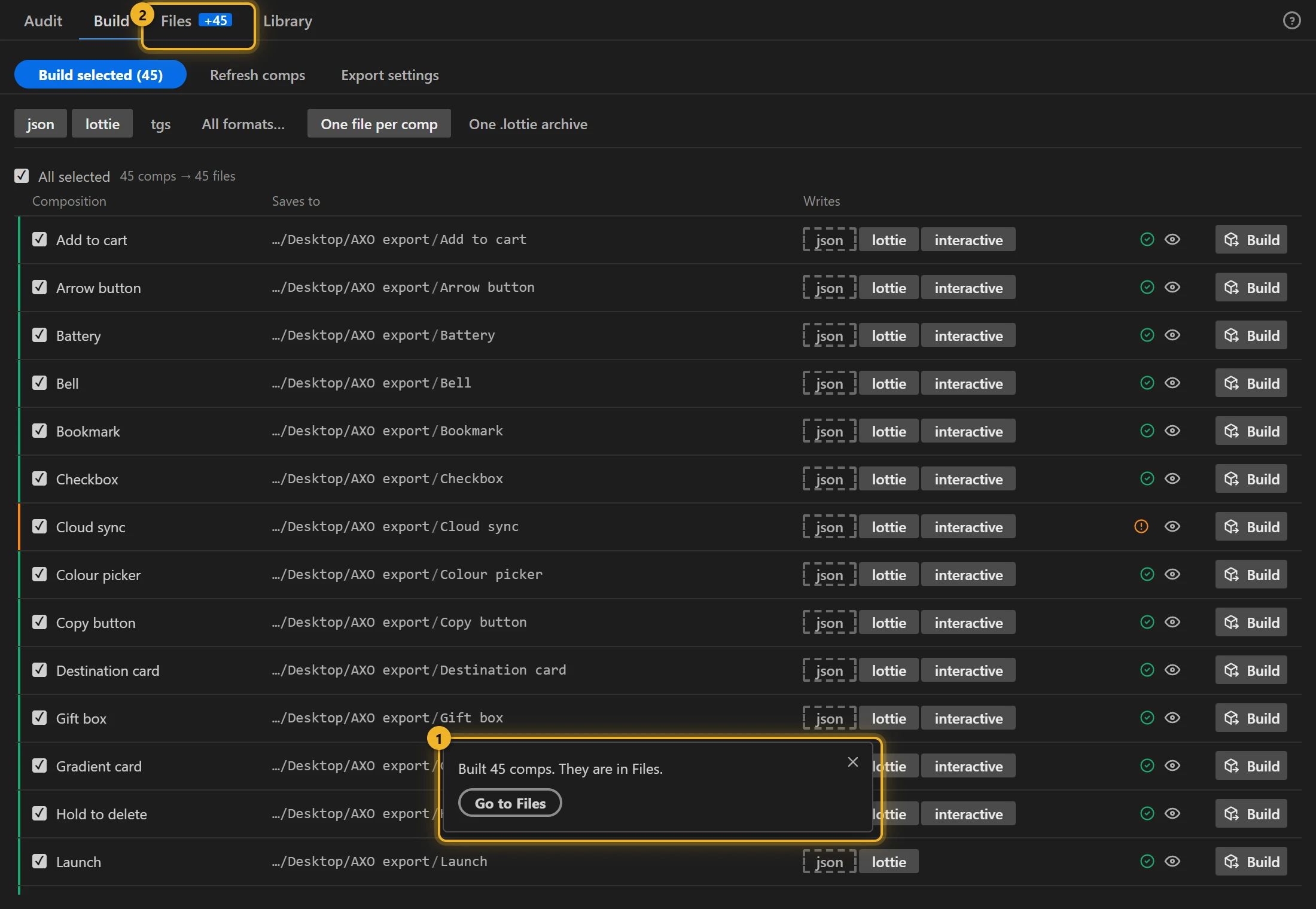
A message reports the result 1, and Go to Files takes you to the new files, selected and scrolled to. If a comp or the archive failed, the message stays on screen until you close it. The Files tab shows how many new files there are 2.
The mark on each row shows the last run's result: a tick (hover it for the sizes) or a coloured warning mark. Click the warning mark to read what the build has to say about that comp, one note per line; errors use the same mark in red. The eye beside it previews the file.
Export settings
Export settings sets the output folder, file naming, text, expressions, layers and images for every comp. See Export settings.
Settings for one comp
Settings come in two layers. Export settings is the base for every comp. A comp's own Settings (on its row) sits on top of it and holds only what you changed there: glyphs for the one comp with a logo, say, or a lower image quality for a heavy one.
- Everything you did not change keeps following Export settings, including later changes to it.
- Set a field back to the Export settings value and that comp follows the base again for it.
- A dot on a row's Settings button means the comp has something of its own. Without the dot, it builds exactly with Export settings.
- The row's file name, folder and format chips work the same way: they change that comp only, and the rest of the build keeps the common values.