
State machines, step by step
A state machine is the part of a .lottie that decides what plays when: a click, the pointer, a timer or your page moves it from one segment to another. This page is the reference for building one in the Interactive Studio: every part, every control, how the player really behaves, and what the Studio's warnings mean. The templates and the two bigger examples (music player, thermostat) show the same parts at work.
Everything marked measured was played in dotlottie-web 0.80.0, the player a web page uses. 0.81.0, which AXO and these pages use now, carries the same player engine byte for byte (checked 2026-10-14), so it holds there too.
The parts
| Part | What it is | Where in the Studio |
|---|---|---|
| State | One thing the animation does: it plays a segment (once, looping, backwards, faster…), or it waits on a frame. One state runs at a time. | A box in the graph |
| Listener | A state that plays nothing. Its rules apply from every state, so it is where “Next works whether playing or paused” lives. One per machine. | + Listener |
| Rule (transition) | When something happens, if the conditions hold, go to another state. | A wire between two boxes |
| Input | The machine's memory, and your page's way in: true/false, a number, text, or an event (no value — it just happens). | Advanced → Inputs |
| Interaction | When the pointer does something (click, press, release, enter, leave, move) or a state finishes → do these actions, in order. | Advanced → Interactions |
| State actions | Actions a state runs on entering, on leaving, when it finishes, on every loop. | The state's inspector |
Rule or interaction? The most confused pair. An interaction does things (set an input, fire an event, switch a theme) and never changes the state by itself. A rule moves to another state, and it reads inputs to decide. A click usually needs both: the interaction sets or fires an input, the rule reads it. When you pick click on a layer as a wire's When, the Studio writes that pair for you.
Your first machine, from Blank
Three states, no template, on the sample comp Bell (markers idle and ring): the bell sways, a click rings it once, then it sways again.
Interactive on the comp's row → Ship this comp as interactive → New machine → Blank. One state appears 1; the comp's markers are behind Segments 2.
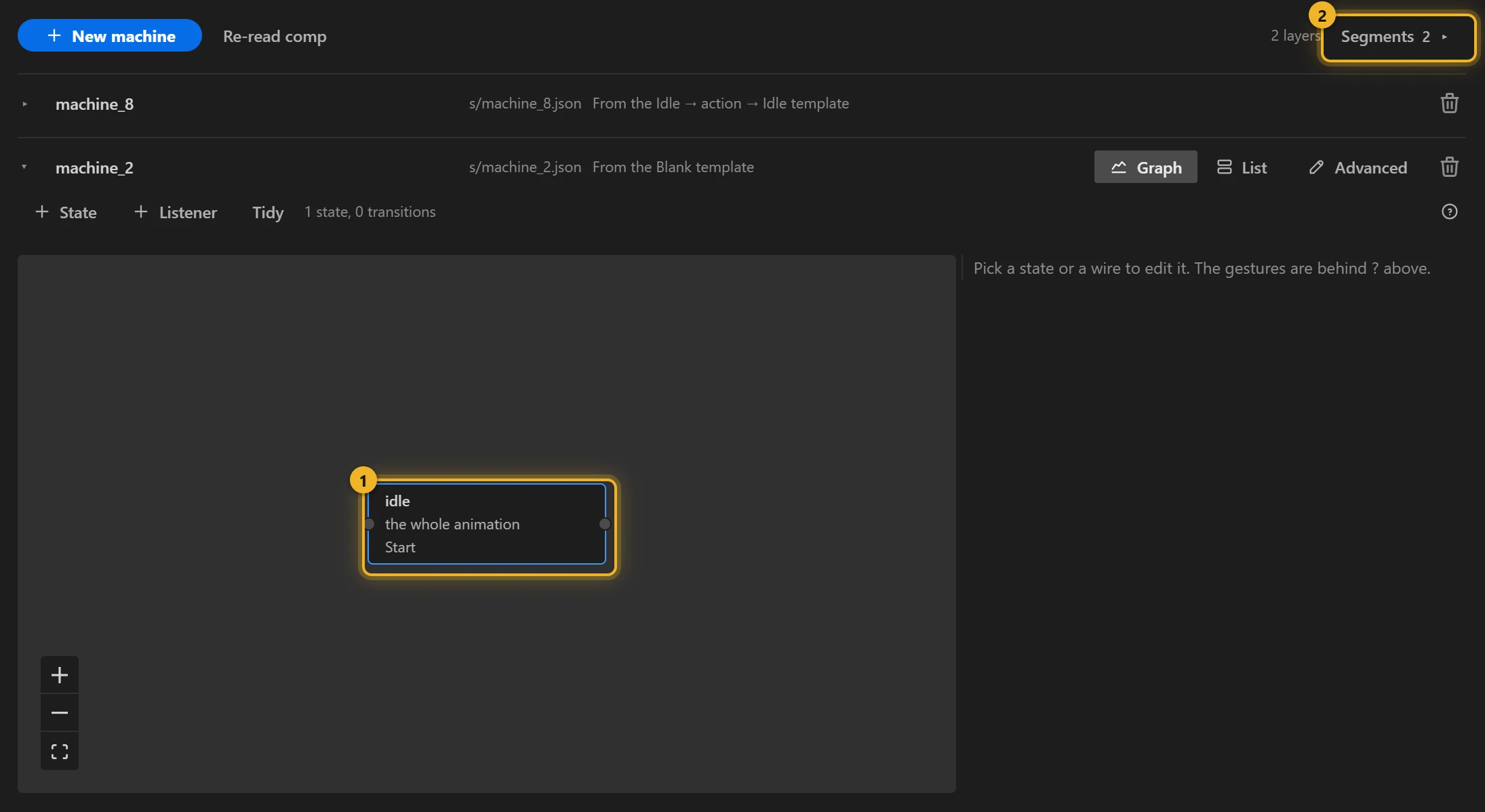
Open Segments and drag idle onto that state: it now plays
idle1. In the inspector set Repeat to for ever 2. It is already where the machine starts (Start here).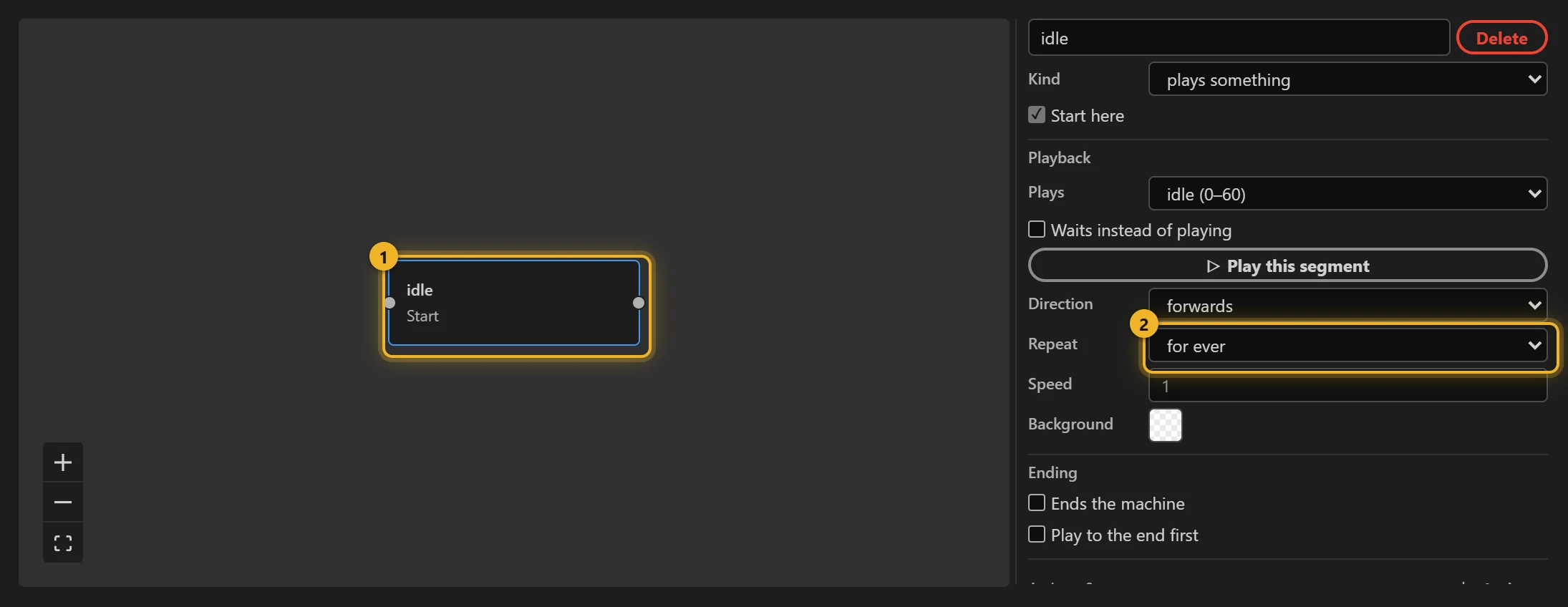
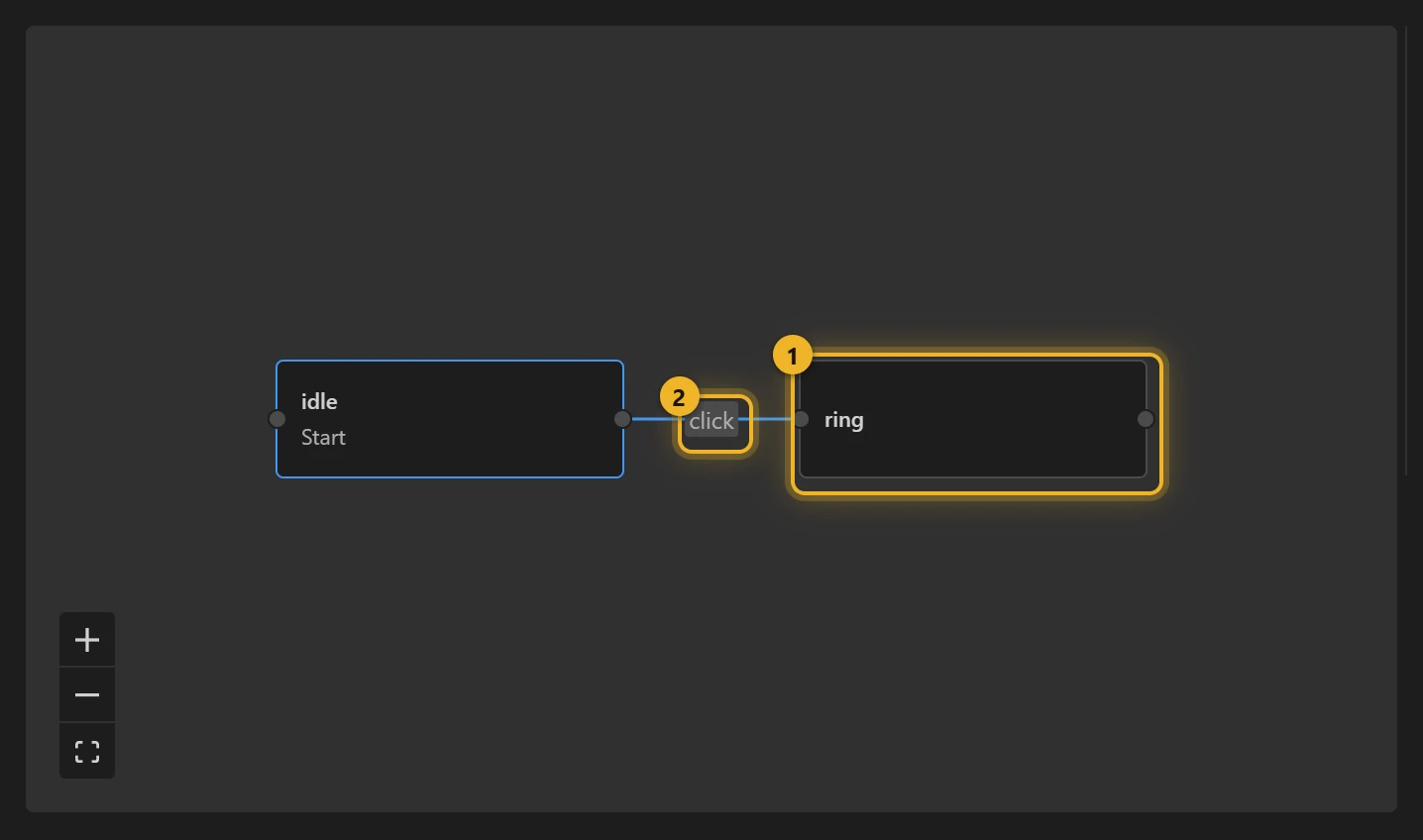
Drag the segment ring onto empty canvas: a second state that plays
ringonce 1. Press Tidy if it landed out of view.Drag from the dot on idle's right edge onto the dot on ring's left edge: a wire. A looping state cannot wait to finish, so its When is click 2. Leave anywhere on the animation, or pick the bell's layer.
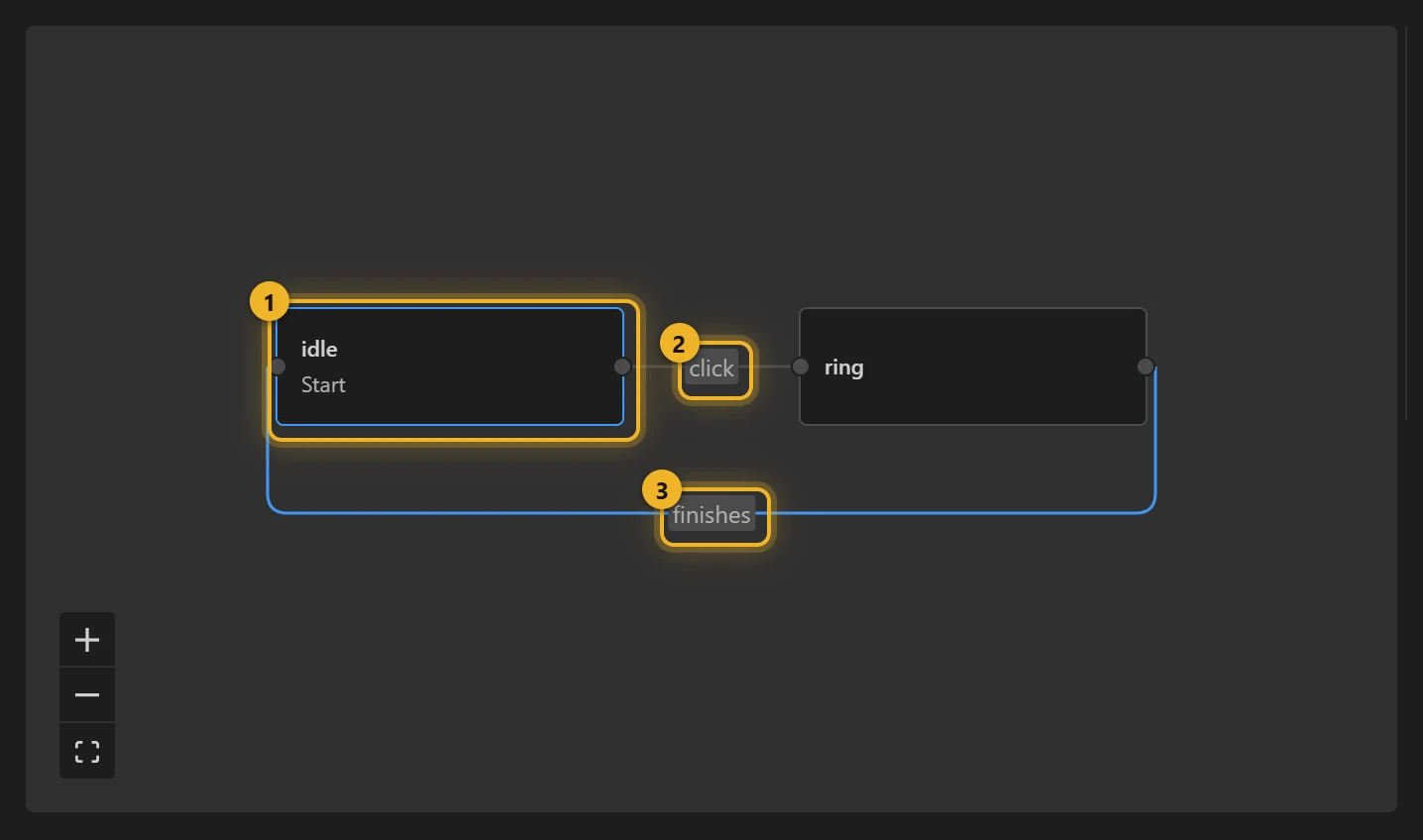
Drag from ring's right dot back onto idle's left dot. ring plays once, so this wire's When is when it finishes 3.
Build this comp and click the bell in the Test player.
That is the whole Idle → action → Idle template, built by hand. Everything below is about the same three things: what a state plays, what moves the machine on, and what the inputs remember.
The graph
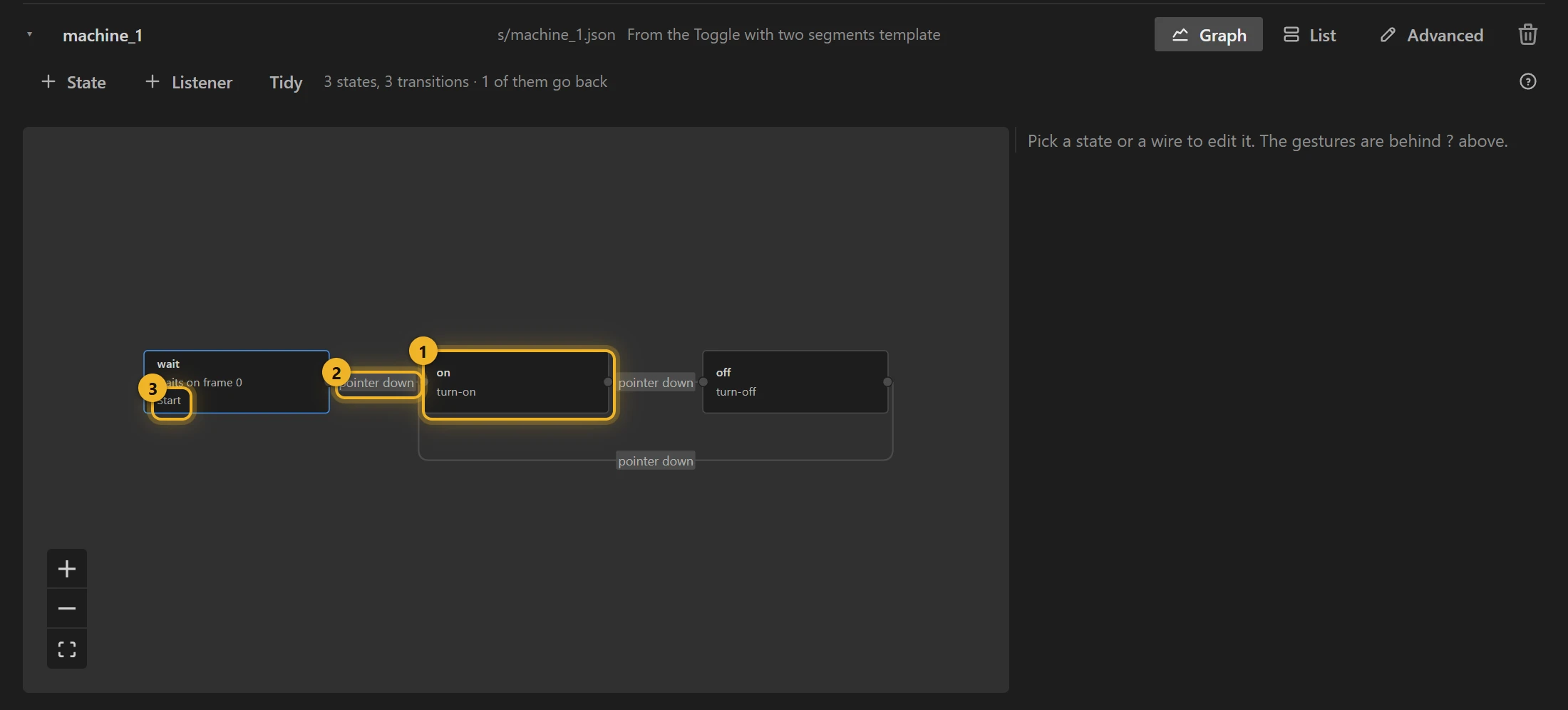
- Add a state: + State (a state that plays a segment you choose), drag a segment from the Segments list (top right) onto the canvas (a state that plays it; dropped onto an existing state, it re-points that one), or drag from a state's dot onto empty canvas (a new state, already wired to the one you came from).
- Wire two states: drag from the dot on a state's right edge onto another state. The new wire's When is when it finishes for a state that plays once, click for one that loops or listens.
- Pick a state or a wire to edit it on the right. Del removes what is picked.
- Right-click a state: Set initial state (where the machine starts; also Start here in the inspector), Set final state (it ends the machine), Rename, Duplicate, Delete.
- Tidy forgets the saved positions and lays the machine out again. The count next to it says how many states and transitions there are, and how many go back.
- Keyboard: Arrows walk the map, Tab goes in file order, Enter follows the wire out of a state, Del removes.
- A wire's label says what triggers it:
click · Next button,2s,when it finishes, an input's name. A wire that can never fire says so in its inspector and in the strip at the bottom of the Studio (table below). - ? (How to edit the graph) repeats these gestures in the panel.
The list
List shows the same machine as text: every state with its settings, its actions and its rules, one under another. It is the faster view for a machine with many states, and the place to read a rule's conditions in full (“when change fires and track is 2 and track is not $prev”).
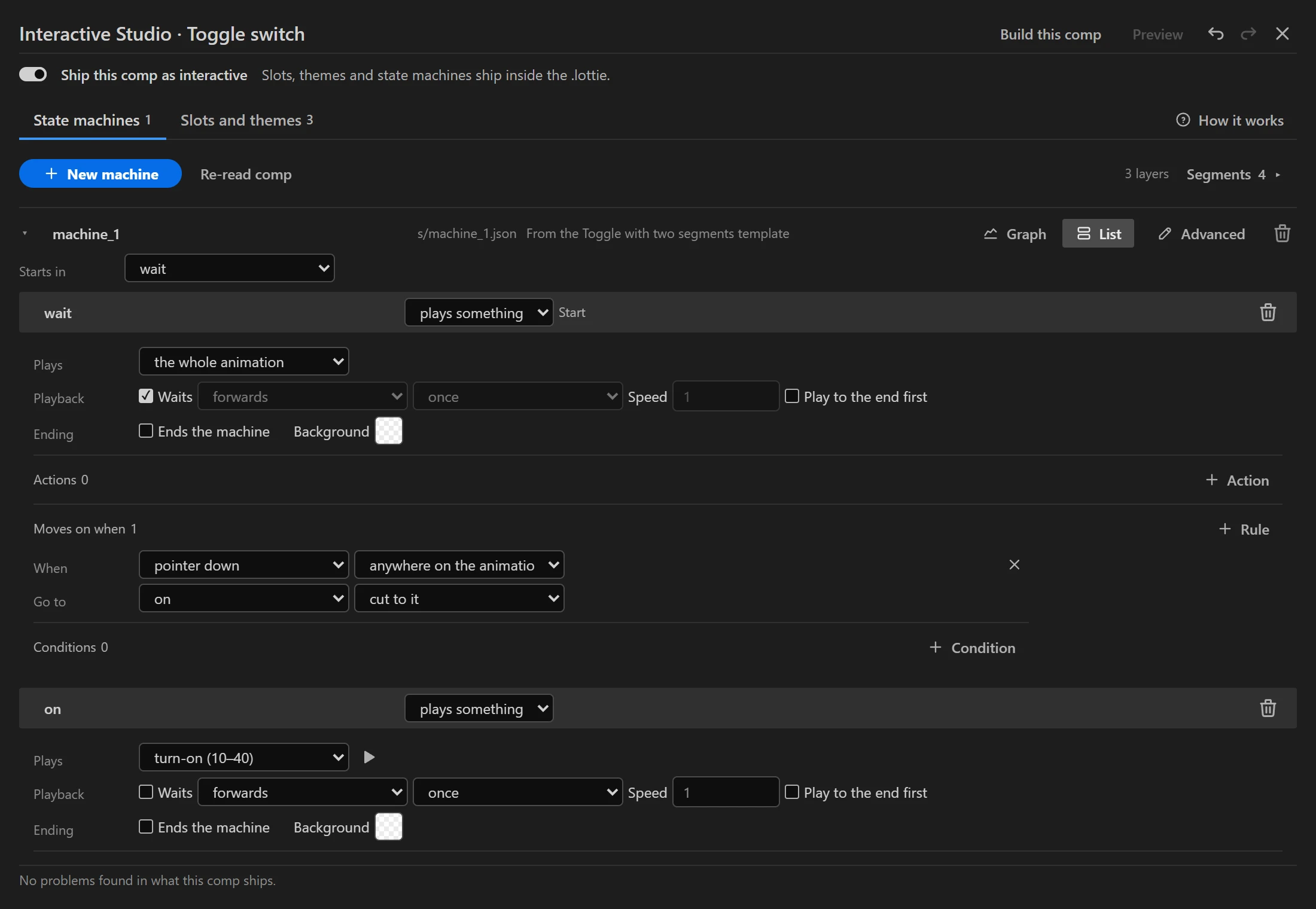
A state
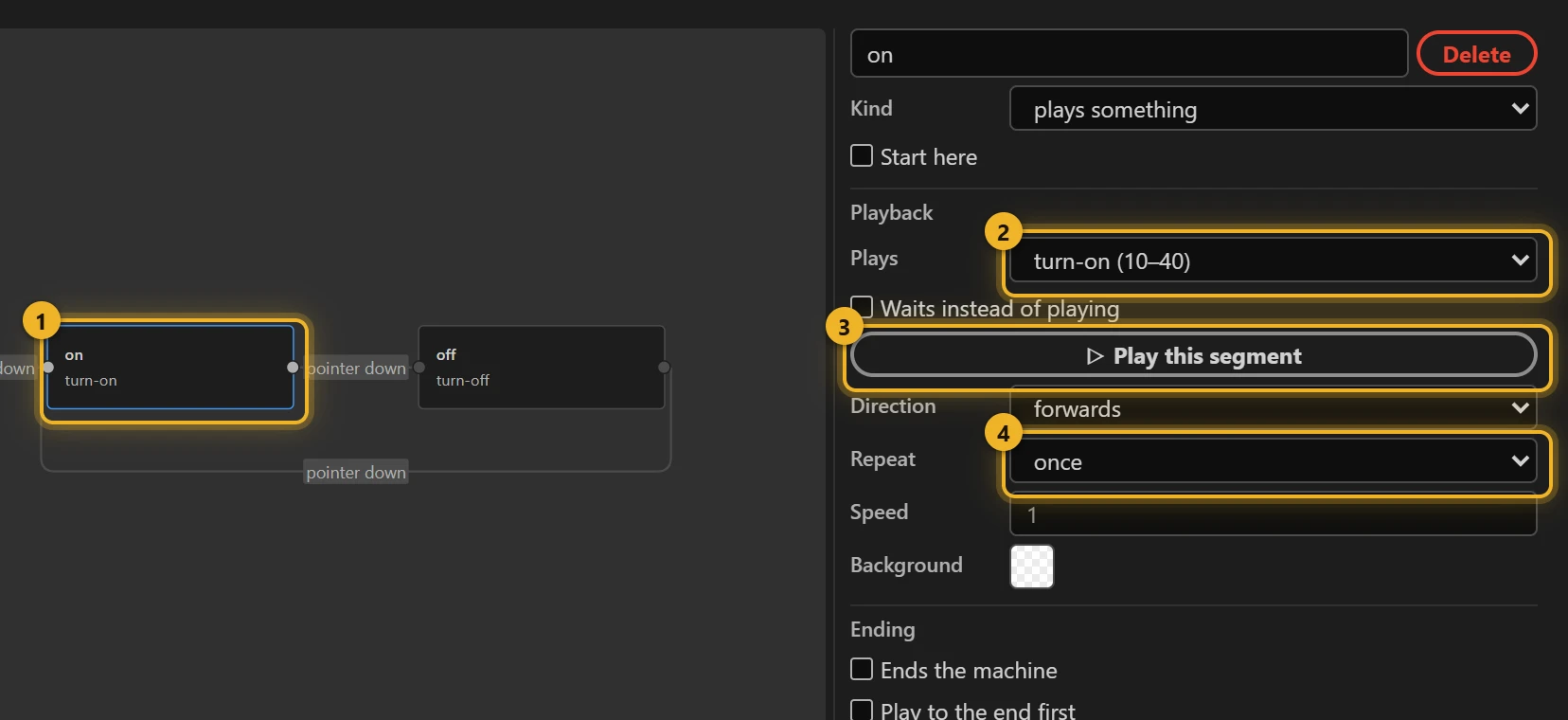
- Kind: plays something, or only listens, from anywhere (the listener).
- Start here: the machine's first state. Exactly one.
- Plays: a segment, the whole animation, or nothing — wait on a frame: the state parks the playhead on the Frame you give and plays nothing (measured: it stays there, and timers keep running).
- Waits instead of playing: the state parks the playhead instead of playing its segment: where the playhead already is inside the segment, otherwise on its first frame. A rule moves it on. The graph shows such a state as waits on …. A state from an imported file that never says whether it plays counts as waiting, because that is what the player does with it (measured); picking a segment for it in Plays makes it play.
- Direction forwards or backwards, Repeat once, a number of times or for ever, Speed (1 is the animation's own). The graph inspector and the list offer the same choices. While Waits instead of playing is on, these three are greyed out: a waiting state plays nothing.
- Which animation: in a
.lottiewith several animations, which one this state plays. Measured: a state that names an animation switches to it; a state that names none stays on whichever is loaded. - Background: a colour the player paints behind the animation while this state runs.
- Ends the machine: a final state. Measured: the machine stops there; inputs still change, but nothing leaves it until the page starts the machine again.
- Play to the end first: every way out of the step waits until its animation has played to the end; a click or hover that comes earlier is ignored. The dotLottie player has no such setting, so AXO writes it the way Lottie Creator does: a hidden true/false input that the step resets on entry and sets when it finishes, added as a condition to each of its rules. It works in any dotLottie player and stays hidden in the Inputs panel. On its own it does not move the step; for that, add a when it finishes rule.
- Actions: on entering, on leaving, when it finishes, on every loop. On leaving runs when one of the step's own rules moves on; when the listener moves the machine on, the player skips it.
A rule
Pick a wire. Each rule has a When, a target (Go to) and, if needed, Conditions, all of which must hold together.
- When: a click or another pointer event (on a layer, or anywhere on the animation), an input changing, an event firing, this state finishing, another state finishing (on the listener only), a time passing.
- Conditions: compare an input with a value, or with another input: write
$and its name (track is not $prev). Numbers compare with is, is not, more than, at least, less than, at most; text and true/false only with is and is not. - Blend into it: instead of cutting, play over a duration. Measured: a blend does not cross-fade two pictures. It plays the timeline from the current frame to the first frame of the next state's segment, in the time you give it. Use it where the frames in between are a natural path (a rewind, a slider moving, a card leaving); avoid it where they are not. The Studio gives every blend an ease-in-out curve; a blend with no curve at all makes the player refuse the whole machine (measured), and the Studio flags one in a file made elsewhere.
Advanced
Advanced shows the machine exactly as the file spells it:
- Inputs: name, kind, start value. Renaming an input renames it in every condition and action that uses it.
- Interactions: the pointer and finishing events, each with its list of actions. The actions run in order, and the player checks the rules after each action, not once at the end (measured). Put the action that triggers a rule last, after everything it depends on (
Set prevbeforeFire change;idle_at = clockbefore+ 4). - Autoplay and other keys the graph does not show; an input nothing reads is listed too (fine if your page drives it).
How the player behaves
All measured in dotlottie-web 0.80.0. They decide how a machine has to be built.
- One playhead. A
.lottieshows one frame of the whole animation at a time. “The heart stays pink while the music plays” is not two things playing. It has to be a segment where the music plays and the heart is pink. See the music player. - A segment plays through its last frame and stays there. End a segment one frame before the next one begins when it stops on a result.
- A different segment starts at its first frame. Moving to a state that plays another segment never carries on from where the last one stopped. Moving to a state that plays the same segment keeps the playhead where it is, whether forwards, backwards or parked (that is how a pause and a hold-to-confirm work).
- A real pause is a state that plays the same segment with autoplay off, reached by a plain rule (no blend): the playhead stays where it was, and going back resumes from there. With a blend into it, the playhead slides to the segment's start instead.
- Routing states: a state that plays nothing and whose rules have conditions but no event leaves the moment it is entered. Use it to turn one event into several outcomes.
- A rule may lead back to its own state; entering again runs the entering actions again.
- Restarting a machine (
stateMachineStart()again) goes back to the first state but keeps every input. Set them in the first state's entering actions (Reset there does not work on a restart; Set does). - Bounce never finishes in a machine: a rule waiting for a there and back state to finish never fires.
- Backwards finishes only sometimes. A state that plays backwards reports when it finishes in some runs and not in others (measured on two real files: the playhead stays on the segment's first frame). Nothing important should wait for it: give the way back its own segment played forwards, as the thermostat's wake does.
- Open a URL is blocked unless the page allows the address (
openUrlPolicy). - An action's value can name an input: Jump to a frame
$dial_frame, Set a number$track. Jump to progress is a percentage (0–100) of the whole animation. While the step plays a segment, a jump outside that segment does not stick: the player keeps the playhead inside it. - Repeat a number of times (
loopCountin the file) plays the segment N times in all, then rests on its first frame.
What the Studio's warnings mean
The strip at the bottom of the Studio checks what the comp will ship. Blocked never reaches the file; a problem ships and does not work; a warning ships and works, but probably not as meant. This list comes from the Studio's own code and holds every message it can show:
| Message | What to do | |
|---|---|---|
| Blocked | … live inside a .lottie archive, and this comp is set to .json only. They will not be written. | Switch on lottie for this comp in Build, or remove the themes / machines. |
| Note | Open Slots and themes to check whether these themes have anything to re-value. | Nothing to fix: open the Slots and themes tab once and the scan runs. |
| Warning | Nothing is exposed, so these themes have nothing to re-value and will not be written. | Add a token (Slots and themes → Add a token), or promote a property to Essential Graphics and Rescan. |
| Warning | No marker named …. Those states play the whole animation. | Add the marker in After Effects and press Re-read comp, or pick another segment for those states. |
| Problem | No marker named "…" in the animation "…" that state plays. It plays that whole animation instead of a section, without an error. | Add the marker to the comp that animation comes from and press Re-read comp, or pick a segment that animation has. |
| Problem | No marker named "…". That state plays the whole animation instead of its section, without an error. | Add the marker in After Effects and press Re-read comp, or pick a segment that exists. |
| Problem | No layer named "…". That interaction can never fire. | Name the layer in After Effects exactly as the interaction does, or pick the layer again on the wire. |
| Problem | The machine has no input named "…", so that action does nothing. | Declare the input (Advanced → Inputs), or point the action at one that exists. |
| Problem | No theme called "…" in this file. That switch does nothing. | Pick an existing theme in the Switch theme action, or create that theme. |
| Problem | The action "…" is not supported: … The whole machine will not start. | Remove the action. dotLottie players run 17 kinds of action; a machine with any other does not start. |
| Problem | "…" is not one of this machine's states, so whatever points at it can never be reached. | Point the transition at a state that exists, or create the state. |
| Problem | "…" plays Bounce, and the dotLottie player never reports a Bounce step as finished, so what runs … never runs. Play it Forward (put the way back into the segment) or ReverseBounce. | Play it Forward with the way back inside the segment, as the message says. |
| Problem | Nothing leads to "…" — no transition goes there and it is not where the machine starts, so it never plays. | Draw a transition to it, make it the start, or delete it. |
| Warning | Nothing inside this machine reads or writes "…". That is fine if a host app or your own code drives it from outside — otherwise it does nothing. | Fine if your page sets or reads it. Otherwise delete the input. |
| Warning | The same "…" interaction is written … times. The player acts on it once; the copies only make the machine harder to read. | Delete the copies in Advanced → Interactions. |
| Problem | The machine has no "initial" state. It does not start at all, silently. | Right-click a state → Set initial state. |
| Problem | "…" is not one of this machine's states. The machine does not start at all, silently. | Right-click a state → Set initial state. |
| Warning | "…" plays at …x speed, … times slower than the animation.… Set its speed to 1 if that is not on purpose. | Select the state and set Speed to 1, or leave it if the slow motion is meant. |
| Warning | "…" has actions on leaving, and the listener can move the machine on from any step. When the listener does, those actions do not run. | Fine if the listener's rules need not run them. Otherwise put the actions on entry of the steps the listener goes to. |
| Warning | "…" jumps to frame … on entry, outside its own segment "…" (frames …–…). While a segment plays, the player keeps the playhead inside it, so the jump does not stick. | Jump to a frame inside the step's segment, or make the step play the whole animation or wait. |
| Warning | … jumps to … % of the animation. Progress is a percentage (0–100); Lottie Creator writes it as 0–1, so … probably meant … %. | Type the percentage (0–100). From a Lottie Creator file, multiply its value by 100. |
| Warning | A blend out of "…" lasts … seconds. The duration is in seconds; Lottie Creator writes milliseconds, so … probably meant … s. | If the file came from Lottie Creator, divide the duration by 1000 (Creator writes milliseconds). A long blend on purpose can stay. |
| Problem | … has an action of a kind the player does not know ("…"). The player refuses the whole machine. | Delete the action, or replace it with one from the editor's action list. |
| Problem | … has a … action whose value is null. The player refuses the whole machine. | Give the action a value (or delete it). |
| Problem | … has a SetTheme action that names its theme as "themeId" and has no "value". The player refuses the whole machine. | Pick the theme again in the action -- the editor writes it as "value". |
| Problem | "…" is a state of a kind the player does not know ("…"). The player refuses the whole machine. | Make it a playing state or the listening (Global) state. |
| Problem | "…" plays in a mode the player does not know (…). The player refuses the whole machine. | Pick the direction again: Forward, Reverse, Bounce or ReverseBounce (capitalised). |
| Problem | "…" has "…": …, which is not a …. The player refuses the whole machine. | Set the field again in the state's settings -- a number for speed, on/off for loop and autoplay. |
| Problem | A transition out of "…" is of a kind the player does not know ("…"). The player refuses the whole machine. | Set the wire to cut to it or blend into it. |
| Problem | A condition on "…" is of a kind the player does not know ("…"). The player refuses the whole machine. | Pick the condition's kind again: number, true/false, text or event. |
| Problem | An interaction of a kind the player does not know ("…"). The player refuses the whole machine. | Pick the trigger again from the list, or delete the interaction. |
| Problem | The input "…" is of a kind the player does not know ("…"). The player refuses the whole machine. | Set the input's kind again (Advanced → Inputs): number, true/false, text or event. |
| Problem | The … input "…" starts at …, which is not a …. The player refuses the whole machine. | Set the input's starting value again (Advanced → Inputs). |
| Warning | … inputs are called "…" and they are all …. Only the last one is used. | Rename or delete one of them (Advanced → Inputs). |
| Warning | … inputs are called "…" with different types. They coexist, and each condition reads the one of its own type. | Rename or delete one of them (Advanced → Inputs). |
| Problem | … has an action (…) with no input name, so it does nothing. | Pick the input the action drives (Advanced → Interactions), or delete the action. |
| Problem | An … interaction names no state. The player refuses the whole machine. | Pick the state whose end it waits for, or change the trigger. |
| Problem | A … interaction has no "actions" list, not even an empty one. The player refuses the whole machine. | Open the machine in the Studio and build: it writes the list. (Seen in files made by hand or by other tools.) |
| Problem | The … input "…" has no "value". The player refuses the whole machine. | Give the input a starting value in Advanced → Inputs, or make it an Event. |
| Warning | … has an action (…) reading "$…", and the machine has no input "…". It reads nothing. | Declare that input (Advanced → Inputs), or give the action a plain value. |
| Problem | "…" has no "transitions" list, not even an empty one. The player refuses the whole machine. | Open the machine in the Studio and build: it writes the empty list. (Seen in files made by hand or by other tools.) |
| Problem | "…" has no "animation" key (an empty one means "this file"). The player refuses the whole machine. | Open the machine in the Studio and build: it writes the key. (Seen in files made by hand or by other tools.) |
| Warning | A transition out of "…" has no destination (toState is empty). It fails when it is taken. | Point the transition at a state, or delete it. |
| Problem | A blend out of "…" has no easing curve. The player refuses the whole machine. | Pick the wire and set it to cut to it and back to blend into it — the Studio writes a curve. (Seen in files from before 2026-10-01 and from other tools.) |
| Problem | A blend out of "…" has no duration. The player refuses the whole machine. | Set how long the blend lasts (Over … s) on the wire, or make it a cut. |
| Problem | An event condition on "…" has no input name. The player refuses the whole machine. | Pick the event the condition waits for, or delete the condition. |
| Problem | A condition on "…" has no input name, so that transition never fires. | Pick the input the condition reads, or delete the condition. |
| Problem | A transition waits for the event "…", and the machine has no input "…". The player refuses the whole machine. | Declare that event (Advanced → Inputs), or point the condition at an event that exists. |
| Problem | A condition reads "…", and the machine has no input "…". That transition never fires. | Declare the input (Advanced → Inputs), or point the condition at one that exists. |
| Problem | A transition waits for the event "…", but "…" is a … input. The player refuses the whole machine. | Make the input an Event, or compare its value instead of waiting for it. |
| Problem | A … condition reads "…", which is a … input. That transition never fires. | Use a condition of the input's own kind: number, true/false or text. |
| Problem | … on "…" has nothing to compare against ("compareTo"). The player refuses the whole machine. | Type the value the condition compares against. |
| Problem | … on "…" has no comparison the player knows ("conditionType": …). The player refuses the whole machine. | Pick the comparison again (equal, greater than, ...). |
| Problem | A condition compares against "$…", and the machine has no input "…". The player refuses the whole machine. | Declare that input, or compare against a plain value. |
| Problem | A … condition compares against "$…", which is a … input. The player refuses the whole machine. | Compare against an input of the condition's own kind, or against a plain value. |
| Problem | A Boolean condition on "…" compares against …, not true/false. The player refuses the whole machine. | Compare against true or false. |
| Problem | A Numeric condition on "…" compares against …, not a number. The player refuses the whole machine. | Compare against a number (or $ + another number input). |
| Problem | A String condition on "…" compares against …, not text. That transition never fires. | Compare against text (or $ + another text input). |
| Problem | "…" has … transitions with no "guards" list at all. The player refuses the whole machine. | Open the machine in the Studio and build: it writes the list. (Seen in files made by hand or by other tools.) |
| Warning | "…" has … transitions with no condition. Only the first one ever runs. | Give all but one a condition, or delete the extra ones. |
| Problem | … states are called "…". The player refuses the whole machine. | Rename one of them. |
| Problem | The machine has … listening (GlobalState) steps; the player allows one and refuses the whole machine. | Keep one listener and move the other one's rules onto it. |
| Blocked | This rule waits for … events at once, but the player delivers one event at a time — it can never fire. Keep one event and make the rest value conditions. | Keep one event as the When; turn the others into value conditions. |
| Blocked | "…" can only finish while the machine is in it, not while it is in "…" — this rule can never fire. Put it on a listening step. | Move the rule onto the listener (the state that listens from anywhere). |
| Blocked | "…" never finishes (…), so this rule can never fire. | Wait for something else (a click, an input), or make the other state play once. |
| Blocked | "…" loops for ever, so it never finishes — this rule waits for something that cannot happen, and the machine stops here. Either stop the loop or wait for one pass of it instead. | Set Repeat to once, or use “on every loop” instead of “when it finishes”. |
| Blocked | "…" only listens — it plays nothing, so it never finishes and this rule can never fire. | Give the rule another When: a click, an input, a timer. |
| Warning | "…" both loops for ever and is set to play to the end before leaving. Nothing can ever leave it. | Untick Play to the end first, or stop the loop. |
From a web page
html
<canvas id="anim" width="480" height="270"></canvas>
<script type="module">
  import { DotLottie } from "https://cdn.jsdelivr.net/npm/@lottiefiles/dotlottie-web@0.81.0/+esm"; // the version these pages use
  const player = new DotLottie({ canvas: document.getElementById("anim"), src: "card.lottie", stateMachineId: "player" });
  // stateMachineId in the config loads AND starts the machine (measured).
</script>| To | Call |
|---|---|
| Start, stop | stateMachineLoad(id) + stateMachineStart(), stateMachineStop() |
| Set an input | stateMachineSetBooleanInput(name, v), …NumericInput, …StringInput |
| Fire an event | stateMachineFireEvent(name) |
| Read | stateMachineGetCurrentState(), stateMachineGetBooleanInput(name) …, stateMachineGetInputs() |
| Listen | events stateMachineStateEntered, stateMachineTransition, stateMachine…InputValueChange, stateMachineCustomEvent (a Fire a custom event action; name in eventName) |
| Send a pointer event from code | stateMachinePostClickEvent(x, y), …PointerDownEvent, …PointerUpEvent, …PointerEnterEvent, …PointerExitEvent, …PointerMoveEvent |
| Themes | setTheme(id), resetTheme(); a machine can switch themes itself |
stateMachinePost…Event(x, y)takes canvas pixels, not CSS pixels: on a screen with device pixel ratio 2, the point the user sees at (170, 70) is (340, 140) (measured). One call fires once. Don't post events for clicks on the player's own canvas: the player already listens there, and the interaction would run twice.- A canvas scaled by CSS still hits the right layer, at any size and pixel ratio (measured); if its shape differs from the animation's, the animation is letterboxed and the click counts where the layer is drawn.
Touch and phones
Measured with a touchscreen:
- A tap on a layer fires pointer enter, pointer down, pointer up and click. Pointer exit fires only on a later tap somewhere else, because after a tap the “pointer” stays on the layer.
- So a hover machine, on a phone, plays its hover on the first tap and stays hovered until the next tap elsewhere. Make sure a hover state is not the only way to reach something.
- Press and hold: pointer down at the touch, up and click at the release.
- A finger that moves while pressed is taken by the browser as a scroll: the player gets pointer exit and no pointer up at all. A machine waiting for the release (a hold-to-boost, a press button) stays pressed. Give the canvas
touch-action: nonein your CSS (then pointer up on no layer does arrive), or end the press on pointer exit too, as the thermostat does.
Accessibility and reduced motion
A canvas is one image to a screen reader and cannot take keyboard focus. Put the meaning around it:
html
<button id="like" class="lottie-button" aria-pressed="false" aria-label="Like">
  <canvas id="heart" width="96" height="96" aria-hidden="true"></canvas>
</button>
<script type="module">
  import { DotLottie } from "https://cdn.jsdelivr.net/npm/@lottiefiles/dotlottie-web@0.81.0/+esm"; // the version these pages use
  const player = new DotLottie({ canvas: document.getElementById("heart"), src: "Like button.lottie" });
  const button = document.getElementById("like");
  player.addEventListener("load", () => {
    player.stateMachineLoad("machine_2");
    player.stateMachineStart();
  });
  // The button is the control: Enter and Space work, the state is announced.
  button.addEventListener("click", () => {
    const on = button.getAttribute("aria-pressed") !== "true";
    button.setAttribute("aria-pressed", String(on));
    player.stateMachineSetBooleanInput("value", on);
  });
</script>- The
<button>takes focus and keys; the machine is driven through its input, not by posting pointer events. Give the canvasaria-hidden="true"so it is not read twice. (Give the canvaspointer-events: nonetoo, or the player's own click listener and the button's would both drive the machine.) - Reduced motion: don't autoplay loops for people who asked for less motion; jump to the result (Jump to a frame, or the state's end) instead of playing the way there.
- A machine that only reacts to hover leaves keyboard and touch users out. Every hover should have a click or a focus path to the same result.
What a machine cannot do
So nobody looks for it:
- Read the pointer's position. Pointer move tells the machine the pointer moved, not where. Eyes that follow the cursor, dragging a slider handle: not possible inside the file. Your page can compute a position and set an input (
stateMachineSetNumericInput), and the machine can Jump to progress from it. - Know about scrolling. Scroll is a page thing; see the recipes below.
- Play two things at once. One playhead per file. For two independent parts (a heart that lives apart from the music), use two animations: two players, or two files side by side.
- Bind data (view models). Not in the format the player runs today.
Page recipes
Play only while it is on screen:
js
new IntersectionObserver(([e]) => (e.isIntersecting ? player.play() : player.pause()))
  .observe(document.getElementById("anim"));
With a machine, fire an event your machine waits for instead: player.stateMachineFireEvent("visible"). Worked example: Play when it scrolls into view.
Scroll drives the animation:
js
addEventListener("scroll", () => {
  const p = Math.min(1, scrollY / (document.body.scrollHeight - innerHeight));
  player.setFrame(p * (player.totalFrames - 1));
}, { passive: true });
Or keep it inside the machine: set a number input, and let a state that waits on a frame jump to $progress. The thermostat's dial is built that way.
Keyboard: a real <button> around the canvas (above), setting inputs or firing events. Or make the canvas itself focusable and post the click for Enter and Space (stateMachinePostClickEvent), so the keyboard runs the very actions a click runs. That is worth it when a click does several things (the music player's Next). Never post for a real mouse click on the same canvas: the player already hears it. Worked example: Keyboard and screen readers.