
Several animations in one file
One .lottie can hold several animations, and one state machine can move between them. Sync status packs two comps from the folder Interactive examples, Cloud sync (two arrows turning) and Synced (a tick drawing in), into one archive. A click switches between them, and each animation has its own theme.
How to pack comps into one archive is in Pack several comps into one .lottie. This page is about what lives inside the archive once it's packed.
Try it: Click the card. How it works: syncing loops Cloud sync in the Busy theme; a click fires tap, and done plays Synced once in the Success theme; another click goes back. The bar shows which animation is playing. The file is the .lottie the panel wrote, played by dotlottie-web, the player a web page uses.
Loading the player…
What belongs to whom
| Belongs to | Where you set it | |
|---|---|---|
| Themes | each animation: the manifest lists which themes an animation carries | Archive tab → Themes per animation |
| State machines | the whole archive: one list, every machine can play every animation | State machines tab (it lists the machines of all members) |
| Segments (markers) | each animation: its own comp's markers | the comp in After Effects |
| Which animation a state plays | each state | the state's From |
1. One theme per animation
Each comp ships its own theme: Cloud sync carries Busy (amber), Synced carries Success (green). In the Archive tab, each theme's line says which animations carry it 1:

The list goes into the file's manifest.json as each animation's themes. It's a list of what belongs to the animation, not a lock: dotlottie-web applies any theme of the file to any animation, matching rules by slot id (measured, 0.80). Both comps here name their cloud slot accent, so the Busy theme would also paint Synced's cloud if something asked for it.
2. One machine for the archive
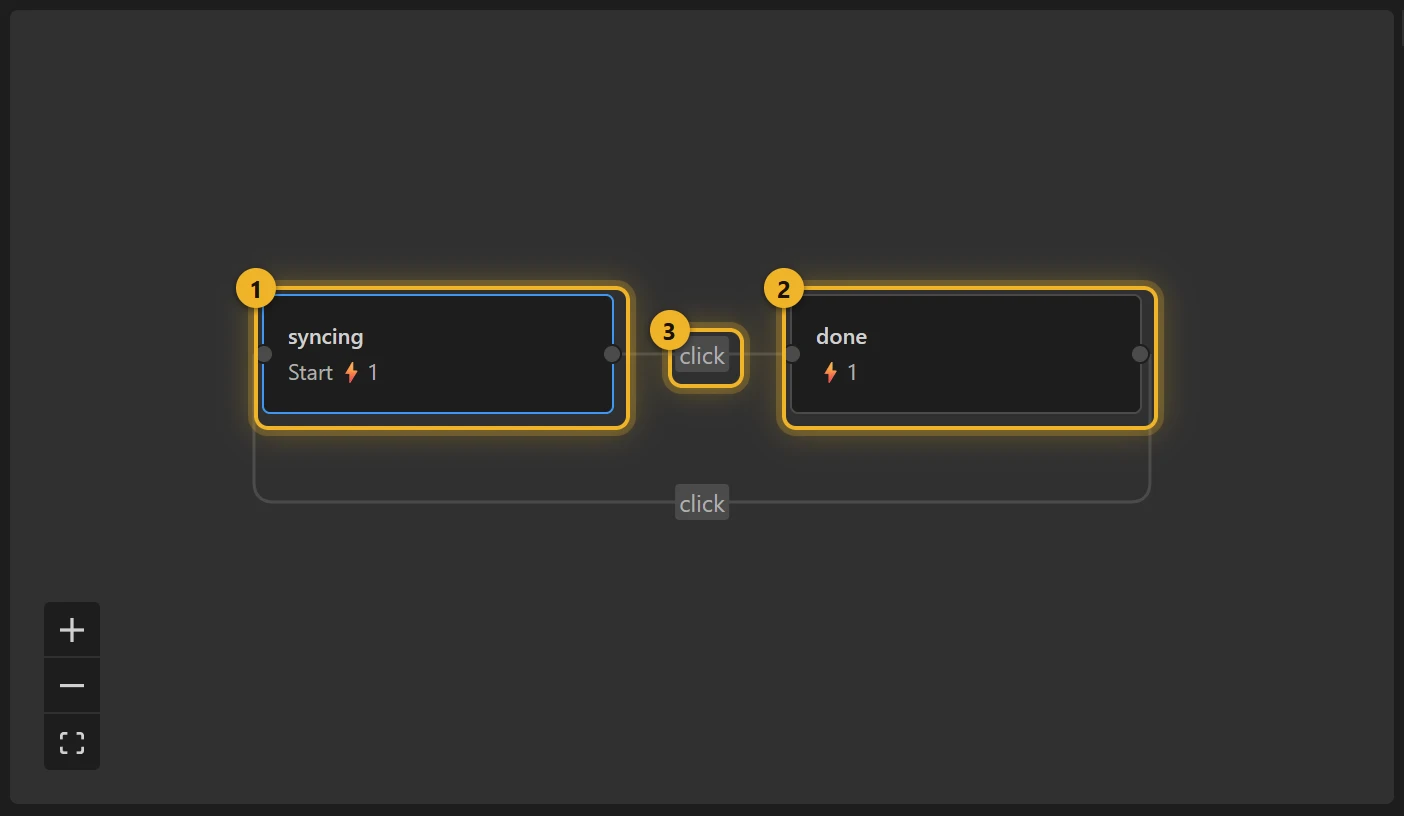
syncing 1 loops Cloud sync; done 2 plays Synced once and rests on its last frame. Both rules wait for a click anywhere on the animation 3. The click carries no layer: the two animations have different layers, and anywhere works in both.
3. From: which animation a state plays
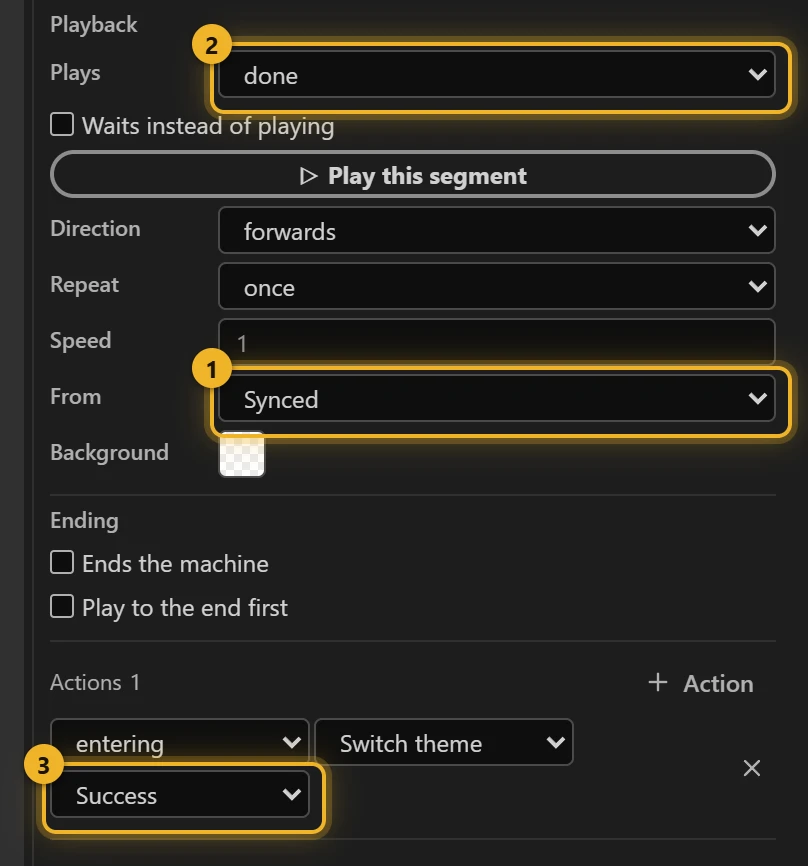
Pick a state. In an archive, the inspector has From 1, the animation that state plays:
- From 1:
Synced. Entering the state loads that animation. - Plays 2: the segment comes from the animation named in From. Synced has a marker called
done, so this list shows Synced's markers, not the comp in the Studio's title. - Switch theme on entering 3: Success. Every state that changes animation sets its theme again (see the traps below).
Set From on every state. The archive's own default (an empty animation) does not mean the first animation: it means "stay on whichever animation is loaded now".
Traps (measured in dotlottie-web 0.80)
- An empty From stays where it is. After
doneloaded Synced, a state with an emptyanimationkept playing Synced; it did not go back to the first animation. Name the animation on every state. - A segment is looked up in the animation the state switches to. Two animations may both have a marker called
bat different frames; a state plays the one in its own animation. A marker that animation does not have is ignored: the whole animation loops, with no error. - Switching the animation drops the theme. After the switch, the player shows the comp's own colours and
activeThemeIdis empty, even when the page had set a theme just before. Put Switch theme in the entry actions of the state that switches: those run after the new animation is loaded, so the theme sticks. - When it finishes still works after a switch: a state that plays a segment of the other animation once fires its when it finishes rule as usual.
On a web page
html
<canvas id="sync" width="240" height="170"></canvas>
<script type="module">
  import { DotLottie } from "https://cdn.jsdelivr.net/npm/@lottiefiles/dotlottie-web@0.81.0/+esm"; // the version these pages use
  const player = new DotLottie({ canvas: document.getElementById("sync"), src: "Sync status.lottie" });
  player.addEventListener("load", () => {
    player.stateMachineLoad("sync");
    player.stateMachineStart();      // syncing: Cloud sync, Busy theme
  });
  // When your own sync finishes, move the machine on without a click:
  // player.stateMachineFireEvent("tap");   // done: Synced, Success theme
</script>
player.activeAnimationId says which animation is playing (Cloud_sync or Synced). To show one animation with no machine, see Use one animation from it.