
Files
Files holds everything on disk you are working with: what Build wrote, and anything you add. The list belongs to the project and is never cleared on its own, because its rows point to your real work. It keeps the newest 200 rows per project. Past that, the project's oldest rows drop off with a note; rows of other projects are never touched.
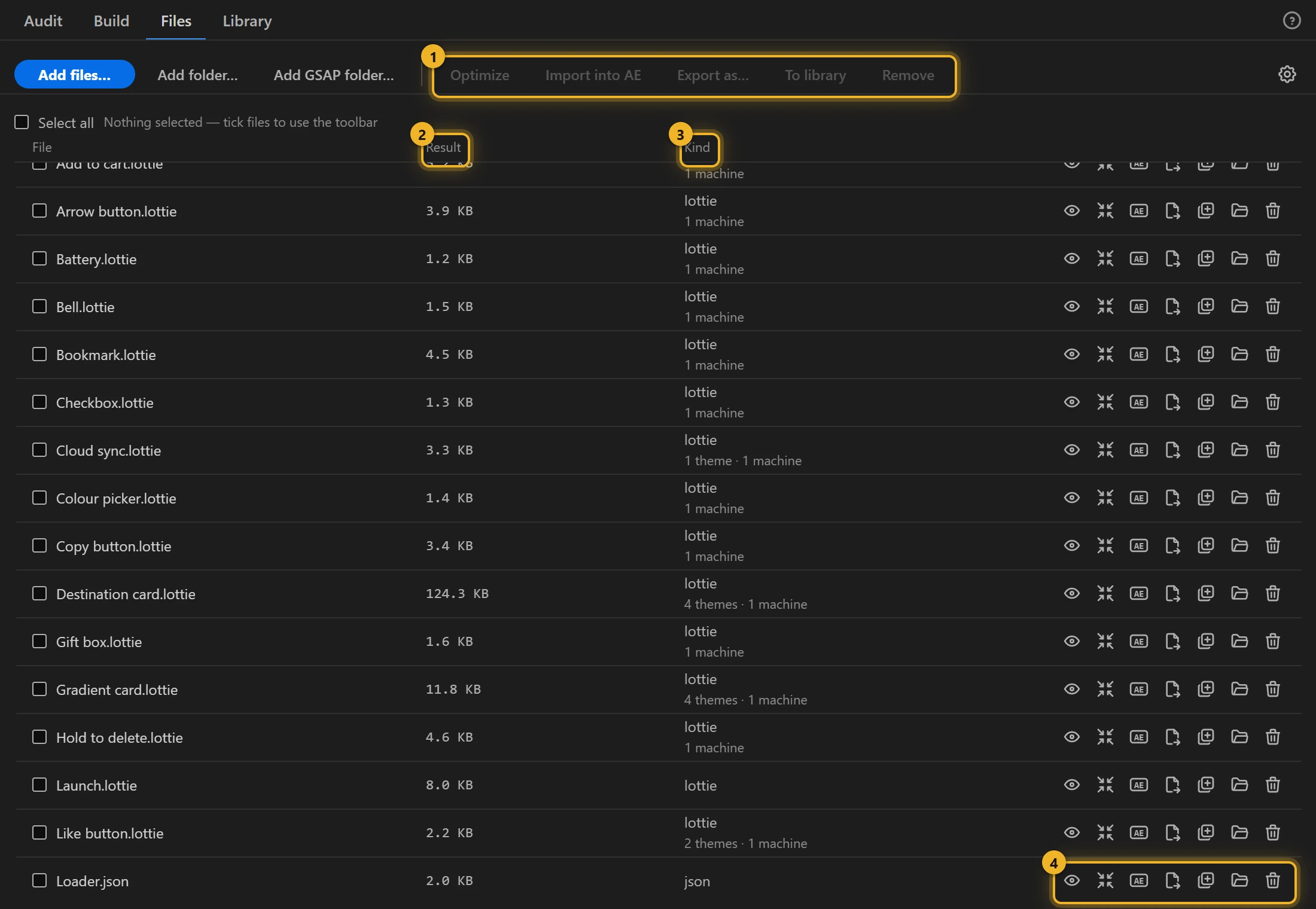
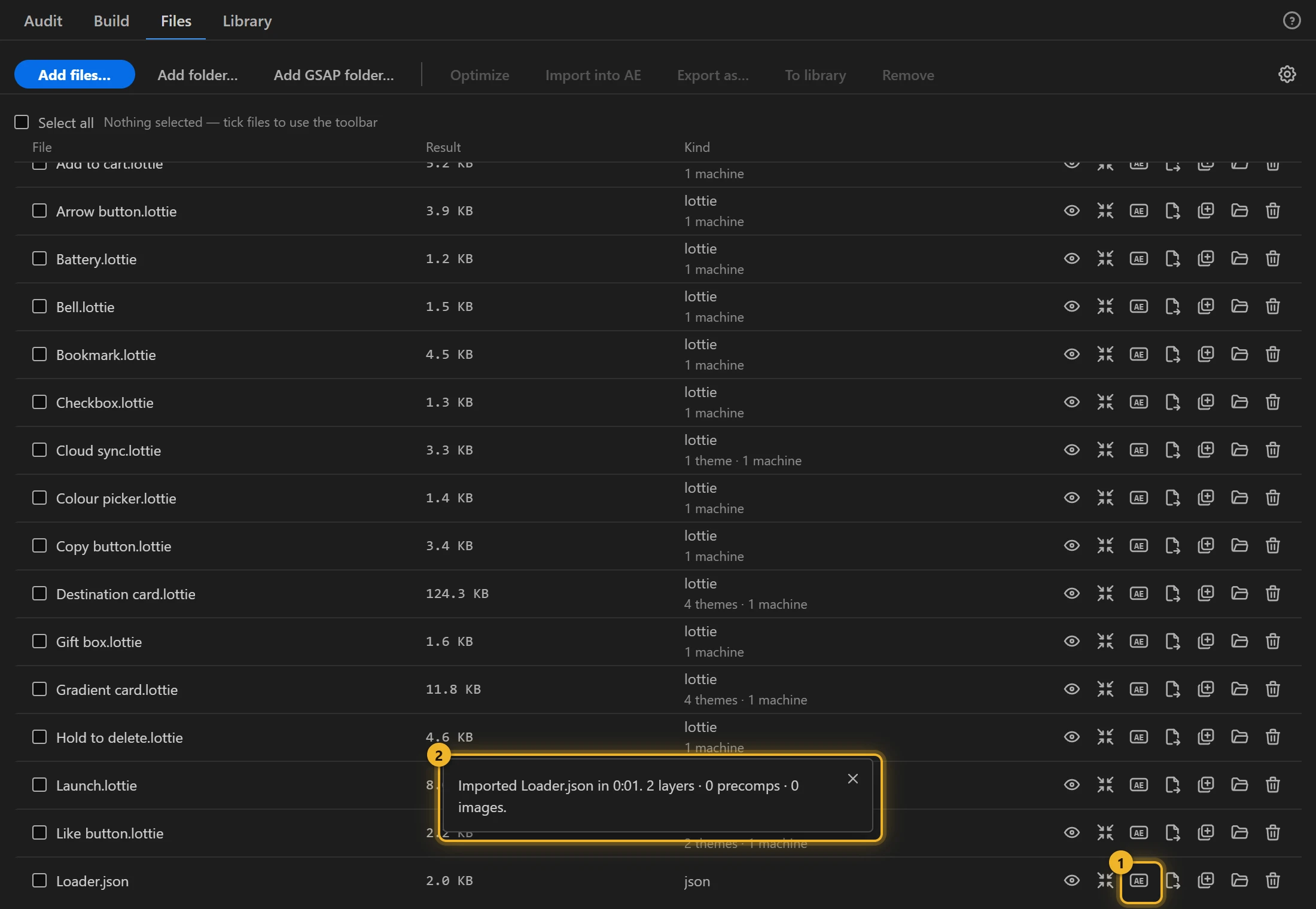
Each row shows the file, its size or the result of what was done to it 2, its kind, with themes and machines for a .lottie 3, and its own actions 4. Tick rows to use the toolbar 1 on all of them at once.
Add files
- Add files…:
.json,.lottie,.tgs,.svg. - Add folder…: every animation in a folder. The scan shows its progress and can be stopped; stopping adds nothing. A
.jsonfile over 64 MB is not opened during a scan (add it with Add files…). One folder scan runs at a time. - Add GSAP folder…: a folder written by the GSAP output.
- Paste (Ctrl+V / Cmd+V) the text of a Lottie JSON or of an animated SVG while the tab is open. Copied file icons,
.lottieand.tgsfiles are not text and do not paste. The pasted animation is saved in thepastedfolder of your AXO data folder and appears as a row.
An animated SVG keeps its motion when it animates with SMIL (<animate>, <animateTransform>, <set>, including animations chained to one another's start or end). An SVG that animates with CSS (@keyframes, animation, transition) is not added, whether you add or paste it, and the row says why.
When an SVG comes in:
- Masks and clip paths become track mattes, each directly above the artwork it cuts: a
<mask>as a luma matte (white shows, black hides, as in the browser), a clip path as an alpha matte. - Shape morphs follow the browser. Two shapes drawn with the same commands morph smoothly; when a shape gains or loses parts, it switches halfway, as Chrome does.
- A dashed circle, ellipse or rectangle starts its dash pattern where the browser starts it.
- Anything that cannot be carried over, such as masks sized to the shape's bounding box, is listed on the row.
What a row can do
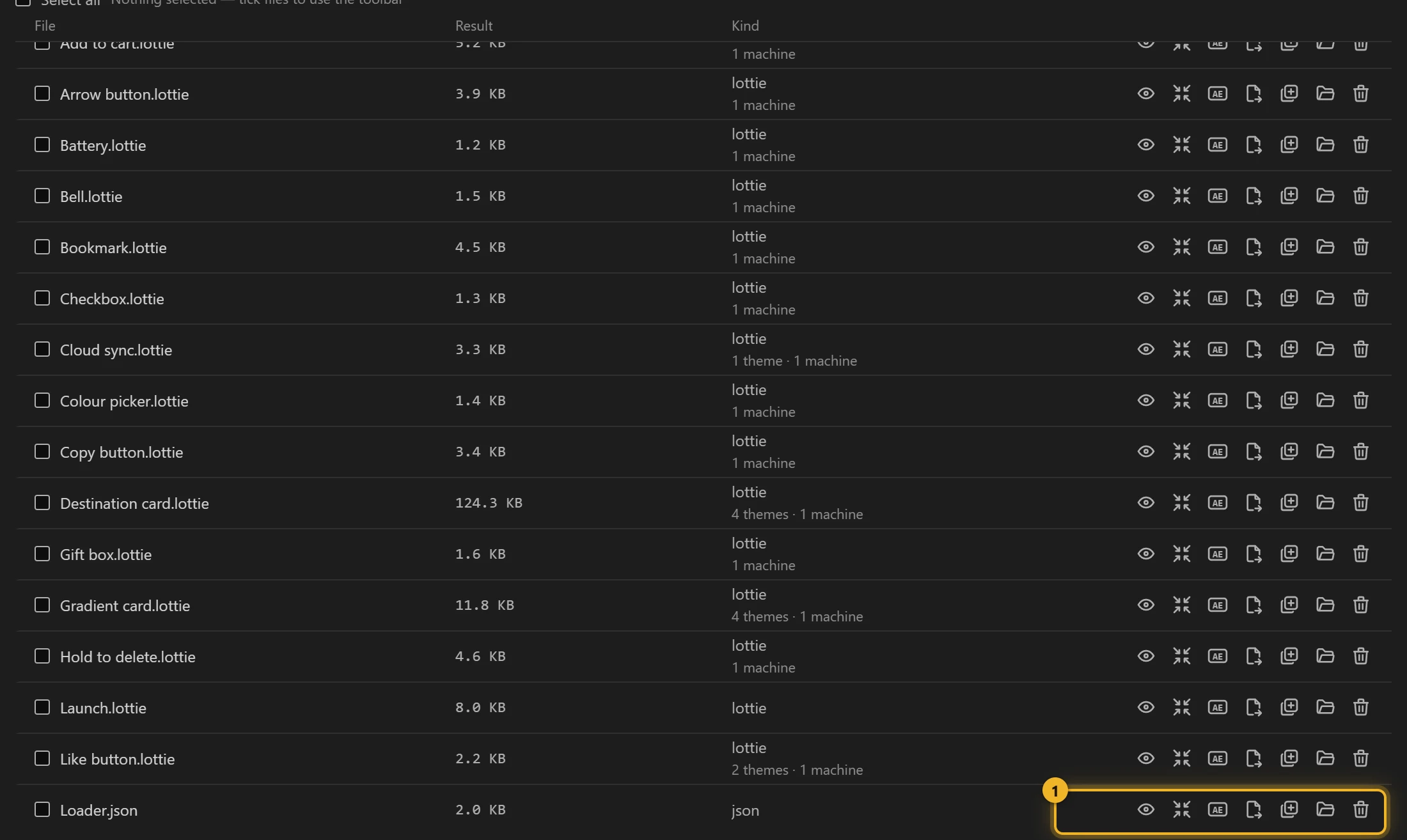
From left to right: Preview, Optimize, To AE, Export as…, To library, show on disk, and remove from the list. Tick several rows to run a toolbar action on all of them.
Optimize
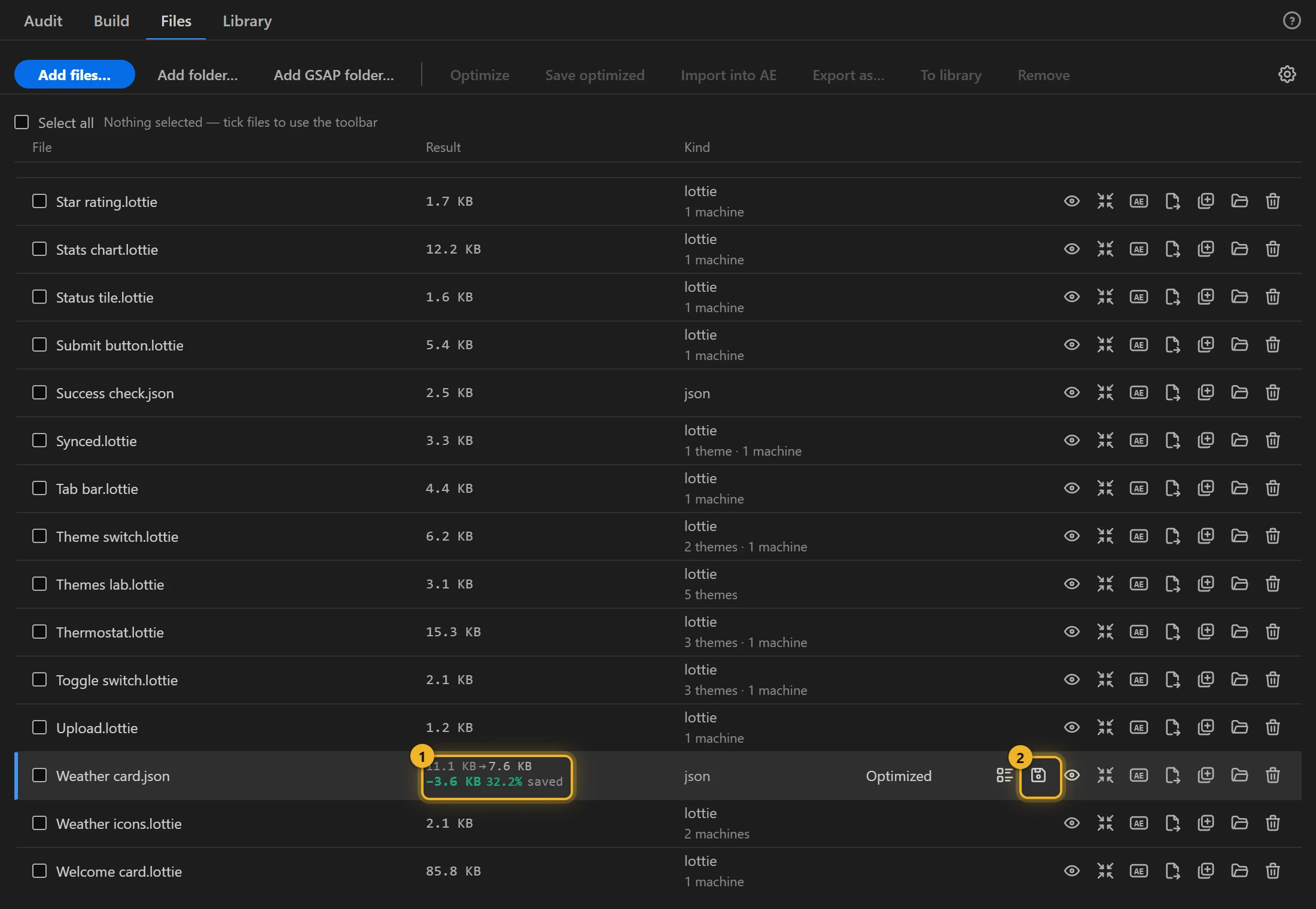
Optimize makes a smaller copy in memory and shows the saving on the row 1. Save (on the row or in the message, 2) writes the optimized file next to the original. The original is never overwritten.
The gear opens Optimize settings; see Optimizer.
Export as…
Re-export a file to any document format Build writes: .json, .lottie, .tgs, JS bundle, demo or banner page, AVD, SVG SMIL, GSAP. One window lists the formats and names the files before anything is written. Every format ticked there lands beside the original; a file from the Library asks for a folder instead.
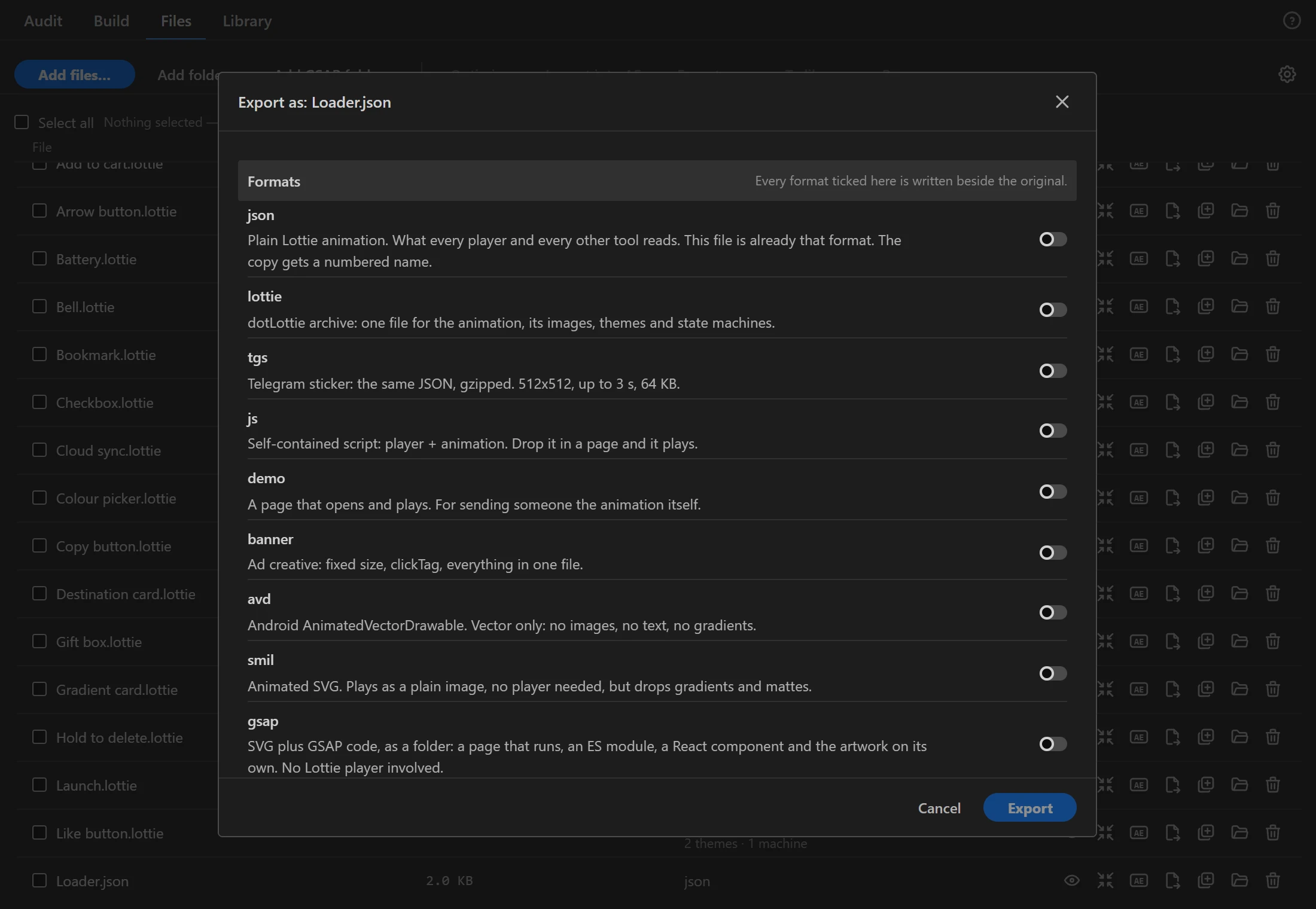
In the trial version, .json, .lottie, .tgs, JS and the HTML pages carry the trial watermark (see Build); SVG, Android vector and GSAP are written without it. Optimize shows an estimate of what the full version would save (see Optimizer). Saving an optimized copy and To library are in the full version.
Files does not render video. Build writes GIF, WebM, AVIF and WebP from the comp itself, drawn by After Effects.
To After Effects
To AE 1 rebuilds the file as editable comps and layers in the open project: shapes, text, masks, mattes, gradients (static and animated), layer styles, slots as Essential Graphics, markers, images and sound. A message 2 says what was built.
An audio layer comes back with its own sound file, where it started, and with its Audio Levels, whether the sound was embedded in a .json, beside it in a folder, or inside a .lottie. Levels come back as the export wrote them: one level for both channels, at most 0 dB (a web player cannot play louder than the file), and a fade as a key on every frame instead of your original keys.
When the import has something to tell you (a gradient to set by hand, a skipped property, where the images were put), a coloured mark appears after the file's name. Click it to read the report, one item per line; you can select and copy gradient stops. Esc or a click elsewhere closes it.
Layer effects come back with their values and keyframes: the effects players draw (Fill, Tint, Drop Shadow, Gaussian Blur…), expression controls (Slider, Checkbox, Layer…), and any other After Effects effect the file carries, such as Glow. An effect from a plugin or preset that is not installed on this machine is listed in the report instead.
A layer's web id and classes (what a web page uses to style or find the layer) have no place in After Effects. When the layer name does not already carry them, they go into the layer's comment as a line like lottie: #hero .button. The next export reads them from there, so the names stay as they were. Edit or delete that line to change them.
A .lottie with several animations imports each of them. If some fail, the file is reported as failed and the message stays until you close it. It says how many came in and names the ones that did not; an animation that stopped halfway may leave part of its comp in the project.
Themes and state machines come along. They are kept with the comp they became, inside your After Effects project (saved with the .aep), the comp is switched to Interactive, and the next Build writes them back. So you can change a downloaded example in After Effects and export it again. A slot that several properties share comes in as name, name +2, … in Essential Graphics and goes out as one slot.
A damaged or unusual file still imports instead of failing halfway, and the report names each adjustment:
- empty entries in its layer list are skipped;
- a frame rate After Effects does not accept for a comp, or a timeline longer than a comp may run, is brought into range (keyframes keep the file's timing);
- an SVG smaller or larger than a comp may be gets a comp of the nearest allowed size.